

A WooCommerce product page has more room for video than most guides suggest. You can put a video in the product gallery, in the long or short description, in the product template, behind a button that opens a lightbox, in a sticky player that follows the shopper down the page, or in a small floating player in a screen corner. Since WooCommerce 11.1, one of those options, the gallery, works without a plugin, as long as the video is a file you upload and you’re willing to switch on an experimental feature.
Most tutorials skip straight to “install a plugin and paste your YouTube link.” That shortcut can leave a long assembly video squeezed into a gallery slider, or the one clip that shows the product buried at the bottom of the description. Choosing gets easier when you treat it as three separate decisions: what the video is for, where the file comes from, and where it appears on the page.
Start with what the video is for
“Product video” covers different kinds of content, and each kind has a natural place on the page:
- Showing the product: a short clip of it in use, a close-up of the material, a 360° spin. Shoppers want this while they’re inspecting the product, which is when they’re looking at the gallery.
- Explaining it: setup, assembly, care instructions, a full walkthrough. Longer, and watched by people who are close to buying or already have.
- Promoting something around it: a sale, a new collection, free delivery this month, a brand clip. None of this is about inspecting one specific product.
- Customer videos: someone who bought the product talking about it. A short one can work like a promo clip; a longer one belongs with the explainers.
The source is a separate question. For most stores it’s either a YouTube URL or a direct URL to an MP4 file. And the source can rule out a placement: WooCommerce’s native gallery video only accepts uploaded files, so a store whose videos all live on YouTube can’t use it.
Take a store selling standing desks. A short clip of the desk rising from sitting to standing height belongs in the gallery, next to the photos. The assembly video already on the brand’s YouTube channel belongs in the description, or behind a “Watch the assembly video” link near the top. A clip announcing free delivery this month isn’t about any one desk, so it fits a floating player that appears on every product page. If the store uses WooCommerce’s native gallery video, the desk clip has to be an uploaded video file, while the assembly video can stay on YouTube.
Where video can go on a product page
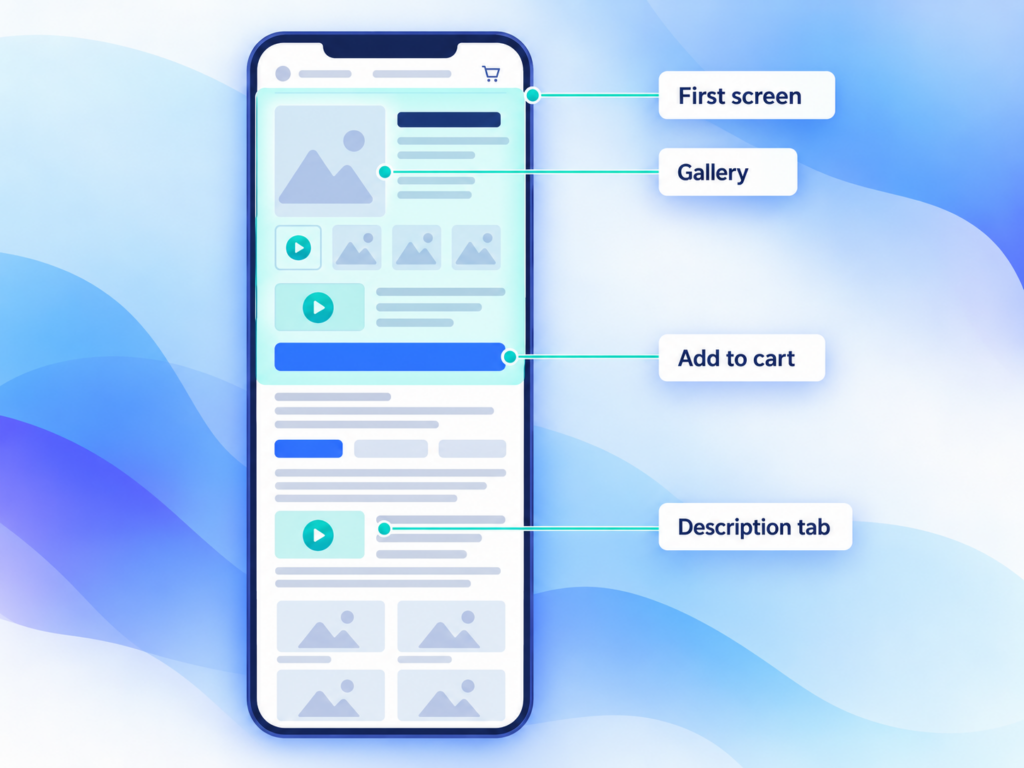
In the product gallery
The gallery is where shoppers look for product video, which makes it the best default for footage that shows the product.
In Baymard Institute’s product page usability testing (published in 2019), users “virtually always” looked at the image gallery when they landed on a product page, and some had trouble finding videos placed further down. One participant who eventually found a video after a long scroll said they “would think the video would be right in the overview.” Baymard recommends putting product videos in or next to the gallery, with a visible play icon on the thumbnail so the video doesn’t look like another photo.
The same testing found that 41% of users watched product videos. The other 59% didn’t, so product photos still carry most of the weight and video is the extra.
Native gallery video (WooCommerce 11.1, experimental). WooCommerce 11.1, released in September 2026, added experimental video support to both the classic product gallery and the Product Gallery block. It’s off by default. Turn it on under WooCommerce → Settings → Advanced → Features → Product gallery videos, then add an uploaded video to the product gallery the same way you add images.
The first version has a narrow scope, according to the WooCommerce team’s announcement:
- Only uploaded video files work. YouTube and Vimeo URLs aren’t supported yet.
- Video works in the product gallery only. It can’t replace the main product image, and variation galleries don’t support it.
- Experimental features can change between releases. Early feedback in the same discussion mentions WebM files not being accepted and, in one store’s layout, a video that didn’t resize to fit the gallery. Try it with your theme on a staging site before switching it on in production.
Gallery video plugins. If your videos are on YouTube, or you need video on variations, a product video gallery plugin is still the practical route. These typically let you attach a YouTube URL or a video file to a product and show it as a gallery slide. When comparing them, check that the video thumbnail gets a play icon, that you can choose between muted autoplay and tap-to-play, and that the YouTube player loads only when someone plays the video.
Whichever route you take, check how the video fits your gallery’s proportions. If your product photos are square and the video is a vertical phone clip, the gallery has to letterbox or crop one of them, and themes handle that differently.
In the description or short description
The description is the quickest place to add a video, because it needs nothing beyond WordPress itself.
Out of the box, WooCommerce turns off the block editor for products, so the product description uses the classic editor and there’s no Video or Embed block. You don’t need one:
- Paste a YouTube URL on its own line, and WordPress embeds the YouTube player.
- Paste a direct URL to an
.mp4file on its own line, and WordPress shows it in its built-in video player. That works whether the file is in your Media Library or on a CDN, as long as the URL ends in.mp4. - Use Add Media to insert a video from the Media Library.
The short description (the Product short description box below the main editor) handles YouTube and MP4 URLs the same way, because WooCommerce runs the same embed processing on it.
The trade-off is position. On most themes the long description sits in the Description tab below the gallery and the add-to-cart area, and on a phone that’s a long scroll down. That’s the kind of position where Baymard’s participants struggled to find videos. Content people go looking for once they’re interested, like assembly, setup, or a full walkthrough, is fine there. The clip that shows what the product is shouldn’t live only in the description.
The short description appears next to the price, above the add-to-cart button, so a video there is seen early. On desktop it also shares a narrow column with the buy box, and every pixel of video height pushes the add-to-cart button further down. A short clip can work there. A long one is better behind a link.
In the product template, with blocks or a page builder
To put a video in a fixed spot that isn’t the gallery or the description, such as a full-width section below the product summary, add it to the template the product page uses.
In a block theme, open Appearance → Editor → Templates → Single Product and insert a Video or Embed block. The Video block accepts an upload, a Media Library file, or a URL; paste a YouTube link into it and it turns into a YouTube Embed block. The Single Product template is shared, though. A video you add there appears on every product that uses it, which is fine for a brand video and wrong for a product demo. For one product, create a template just for it: add a new template, choose Single Item: Product, and pick the product.
Page builders that support WooCommerce product templates work the same way, and their video elements accept both YouTube and video files. Bricks, for example, loads the YouTube or Vimeo iframe only after a visitor clicks the preview image, and it can read the video URL from a custom field, so one template shows a different video on each product. Elementor’s video widget can put an image overlay on the video and open it in a lightbox on click.
In a lightbox that opens on click
A lightbox shows a thumbnail or a “Watch the demo” button on the page and opens the video in an overlay when clicked. In a good implementation nothing heavy loads until that click, and on a phone the video gets the whole screen instead of a slot squeezed between product details. That makes it a good fit for longer videos that would be too big to play inline, and for a demo you want reachable from the top of the page without giving it permanent space.
A video popup that opens by itself when the page loads is a different thing. It covers the product the shopper came to see, and Google’s guidance on intrusive interstitials is aimed at overlays that cover the main content right after a visitor arrives from mobile search. Floating video on WordPress covers the differences between popups, floating players, and sticky players in more detail.
As a sticky video
A sticky video starts in the page content like any embedded video. When the shopper scrolls past it while it’s playing, it detaches into a corner and keeps playing, then goes back to its spot when they scroll up again. On a product page this suits a longer demo that someone wants to keep watching while reading the specs or reviews below it. Unlike a floating player, it’s the video the shopper already chose to start.
As a floating video in a screen corner

A floating video lives outside the page content. A small player appears in a corner, usually after a short delay and muted, and expands when tapped. The shopper can keep browsing, ignore it, or close it.
Product demo footage still belongs in the gallery, where people inspect the product. A floating player suits the promotional job: a sale, a new collection, free delivery, a short brand clip, or a customer video that applies to the whole store.
On phones, check the corner before anything else. The bottom corners are often already taken by a chat bubble, a cookie banner, a back-to-top button, or a sticky add-to-cart bar. A floating player parked on top of the add-to-cart bar hides the button you most want shoppers to tap. Pick a corner that’s free on mobile, add a margin, and keep the initial size small.

Devnet’s PingVid is a floating video plugin of this kind. The free version shows one video across the whole site, from a YouTube URL (Shorts included, with a 9:16 aspect ratio option) or a direct MP4 URL, with the corner, margin, and delay you choose. It starts muted and expands with sound when clicked. PingVid Pro lets you assign a different video to individual products, posts, and pages. That per-product video currently has to be a YouTube URL, so a product-specific MP4 isn’t possible yet. PingVid doesn’t add video to the gallery or make a description video sticky; those are different placements.
Where shoppable video fits
Shoppable video comes up in the same searches. It’s a format rather than a placement: products are tagged inside the video, so viewers can see prices or add items to the cart while watching. It’s mostly built for pages and feeds that feature several products, such as a homepage or a collection page. On a single product page the shopper is already looking at the product and its add-to-cart button, so a plain demo in the gallery does most of the same work.
YouTube URL or direct MP4?
The source decision comes down to who serves the video and what plays it.
| YouTube URL | Direct MP4 URL | |
|---|---|---|
| Who serves the video | YouTube | Wherever the file is: your server, a CDN, object storage |
| Slow connections | YouTube adjusts quality to the connection | One file at one quality, unless you set up streaming |
| What plays it | YouTube’s player, with its branding and suggested videos | The browser’s own video player |
| Page weight before play | The YouTube player’s scripts, unless a click-to-load preview is used | Little, with preload set to metadata or none |
| Native WooCommerce gallery | Not supported in 11.1 | Supported when uploaded to the Media Library |
Two details from that table catch people out. Suggested videos at the end of a YouTube embed can’t be turned off; since 2018 the most YouTube allows is limiting them to your own channel. On a product page, the click you want next is add to cart, and a grid of suggested videos competes with it.
The other is the word “self-hosted.” A direct MP4 URL points at a video file, and that file doesn’t have to be on your WordPress server. It can sit in your Media Library, on a CDN, or on a separate storage service; the last two keep video bandwidth off your hosting. Of the options above, only the native gallery requires a Media Library upload.
Mobile and speed: what to check before publishing
- Expect muted autoplay at most. Browsers block autoplay with sound for first-time visitors, so any video set to autoplay has to start muted. The floating video article explains the browser rules.
- Make the video work without sound. If it autoplays, it plays silently until someone taps it, so captions or on-screen text have to carry the message. The Video block accepts caption tracks in WebVTT format, and YouTube has its own captions.
- Turn on Play inline. Without the
playsinlineattribute, an iPhone may open the video full screen instead of playing it in the page. The Video block has a Play inline setting for this. - Don’t preload whole video files. WordPress’s built-in video player preloads only metadata by default. In the Video block, avoid the Auto preload setting, which downloads the entire file whether or not anyone presses play, and add a poster image so the player isn’t a black rectangle before it loads.
- Remember that lazy loading doesn’t help near the top. WordPress adds
loading="lazy"to embedded iframes in content where it can, which helps a YouTube video deep in the Description tab. A player in the gallery, the short description, or anywhere else on the first screen loads with the page. For those, a preview image that loads the player on click is the lighter option; Google’s Lighthouse calls this a facade and uses YouTube as an example. - Match the video’s shape to the spot. A vertical 9:16 clip suits a floating player or a phone-width layout. In a wide desktop column it usually ends up either boxed into a 16:9 frame with black bars on both sides or as a very tall player.
One thing a video won’t do is get the product page into Google’s video results. Google’s video guidelines only show video features for watch pages, pages whose main purpose is the video, and they list “a product page with a 360 video of a product” as an example of a page that isn’t one. Add product video for shoppers. If the video itself should rank, it needs its own page, or YouTube.
Matching each video to a placement
| What the video does | Where it usually works best | Source notes |
|---|---|---|
| Shows the product: in use, close-up, 360° | Product gallery, after the main photo | Native gallery needs an uploaded file; gallery plugins also take YouTube |
| Explains setup, assembly, or care | Description, or a lightbox opened from a link near the top | Either source; long videos benefit from YouTube’s streaming |
| Long demo watched while reading the specs | Description, with sticky behaviour | Either source |
| Promotes a sale, collection, or offer | Floating corner player | One video sitewide, or a different one per product |
| Customer video | Description or template section for longer ones; floating player for short clips | Either source |
Most stores end up using more than one of these; the standing desk store above has three videos in three places. Decide what each video is for before picking a plugin or method, and the placement and source usually follow.