
Snap Blocks are reusable content blocks that you can design once and use across multiple pages.
Reusable content makes sense whenever the same content appears in more than one place and should stay consistent. Instead of recreating it multiple times, you create it once and reuse it — for example store benefits, promotional banners, or call-to-action sections used across different pages.
In this guide, you’ll learn how to:
- Create a Snap Block
- Edit it using Elementor
- Insert the same block on another page
While this example uses Elementor, the same principle applies when using WPBakery, the WordPress Block Editor, or the Classic Editor. The workflow stays the same — only the editing interface differs.
No PRO features are required — everything in this guide works with the free version of Snap Blocks.
Snap Blocks → Add New Block
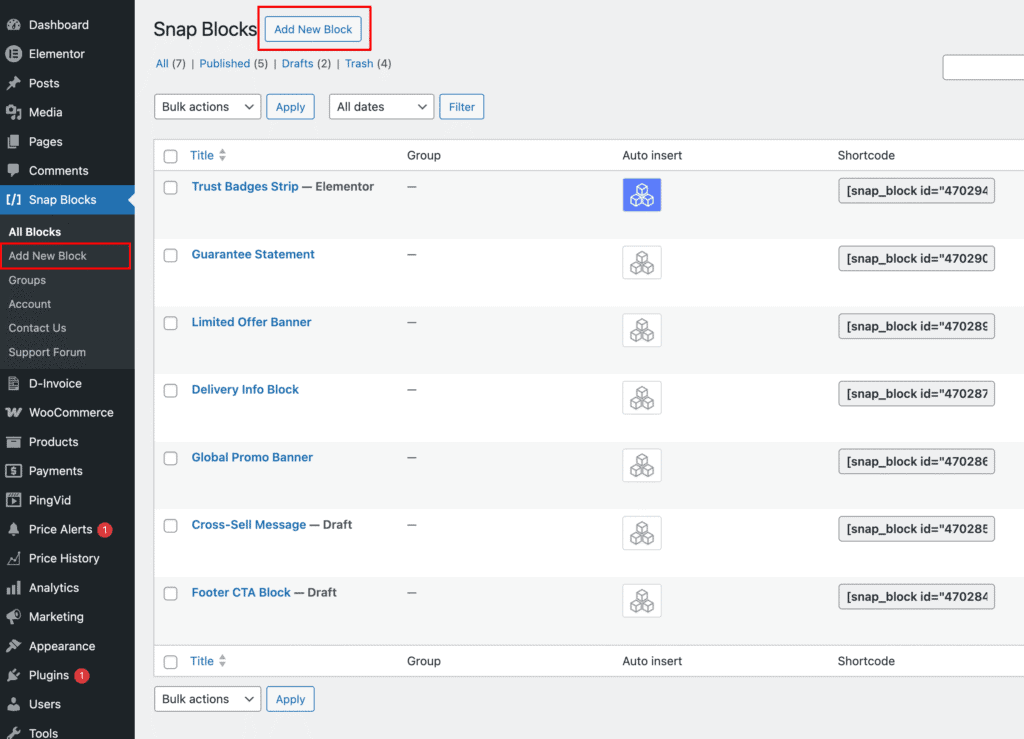
To create your first block:
- Go to Snap Blocks → Add New Block
- Enter a title (used only for identification in the admin)
- Click Edit with Elementor (or your preferred editor)
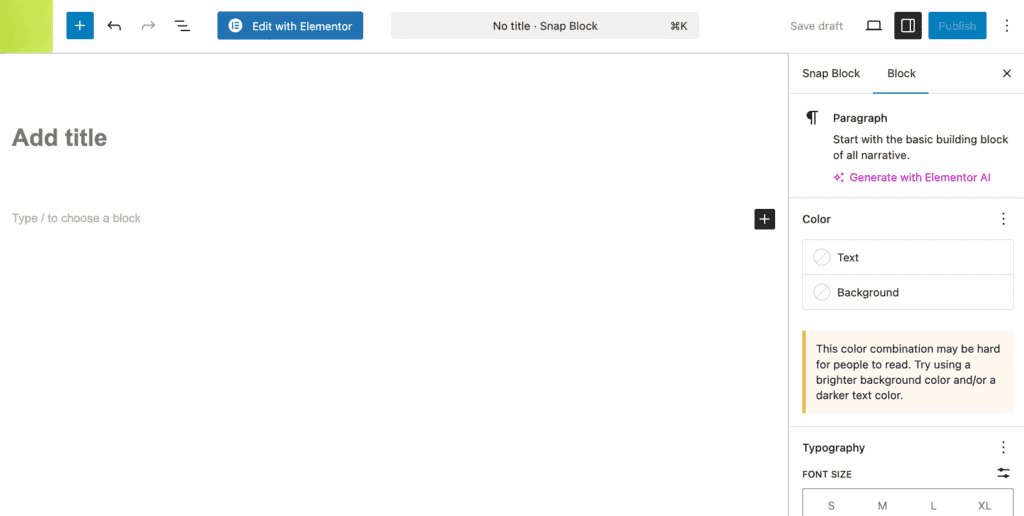
At this point, you’re creating a Snap Block just like a regular page or post — the only difference is that this content is meant to be reused, not displayed on its own.
Example Snap Block
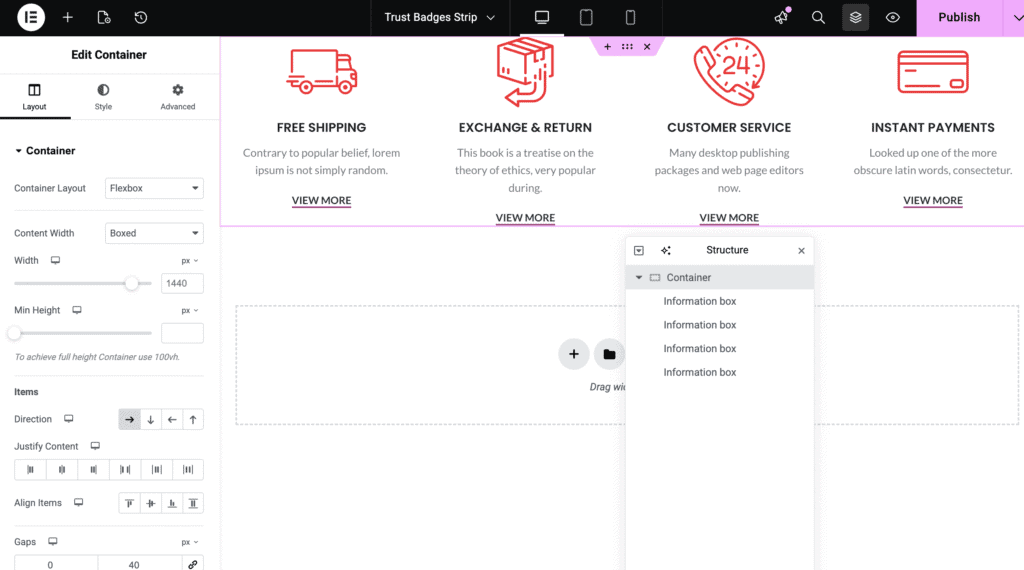
Once a block is created and styled, it can be published and then inserted anywhere it’s needed across the site.
This block can be reused across multiple pages and updated from a single place.
Insert the Block with Elementor
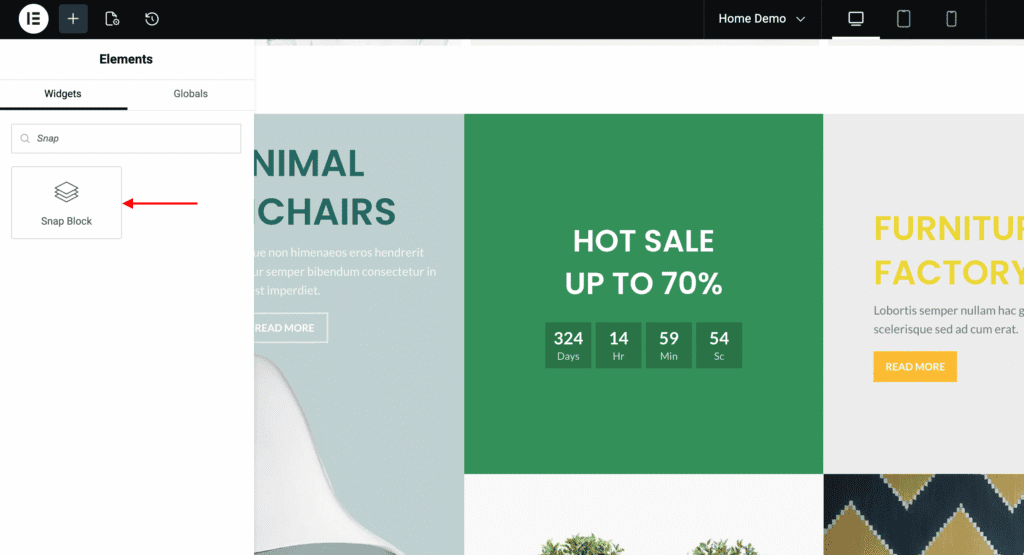
When editing a page with Elementor:
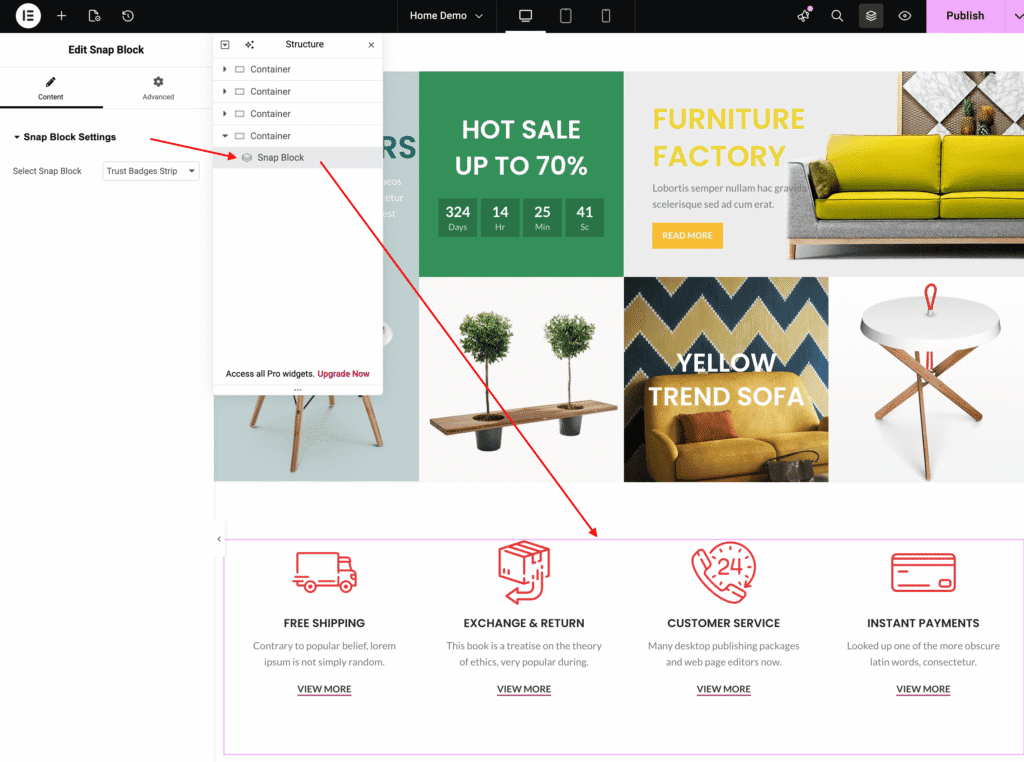
- In the widgets panel, search for Snap Blocks
- Click the widget or drag it into the desired position in the layout
- Once the widget is added, select the previously created block from the dropdown
The selected block will be rendered immediately on the page.
Insert a Snap Block Using a Shortcode
Snap Blocks can also be inserted manually using a shortcode, which is useful when working with other page builders or the WordPress Block Editor.
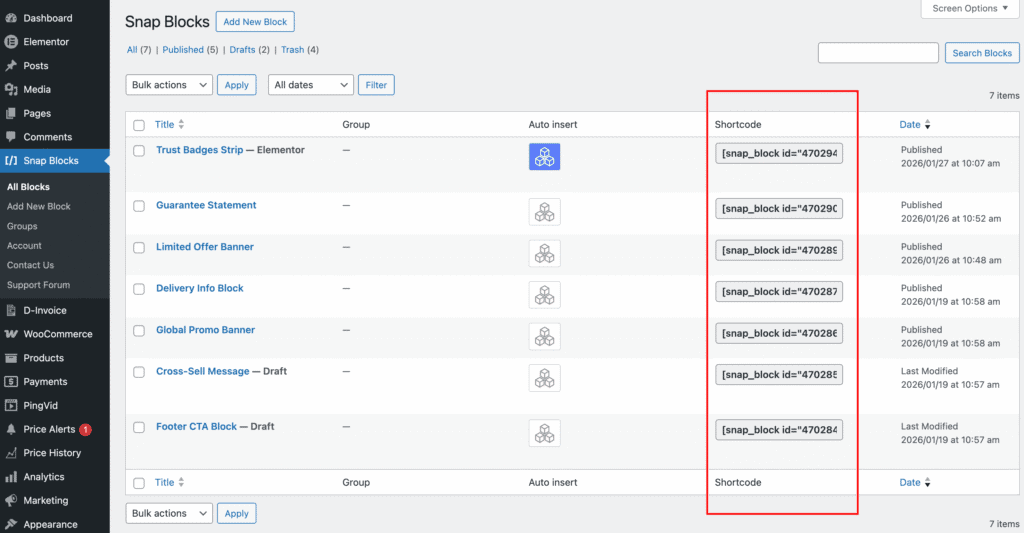
Each Snap Block has its own shortcode, visible in the Snap Blocks list in the admin. This shortcode can be copied and pasted anywhere the editor supports shortcodes.
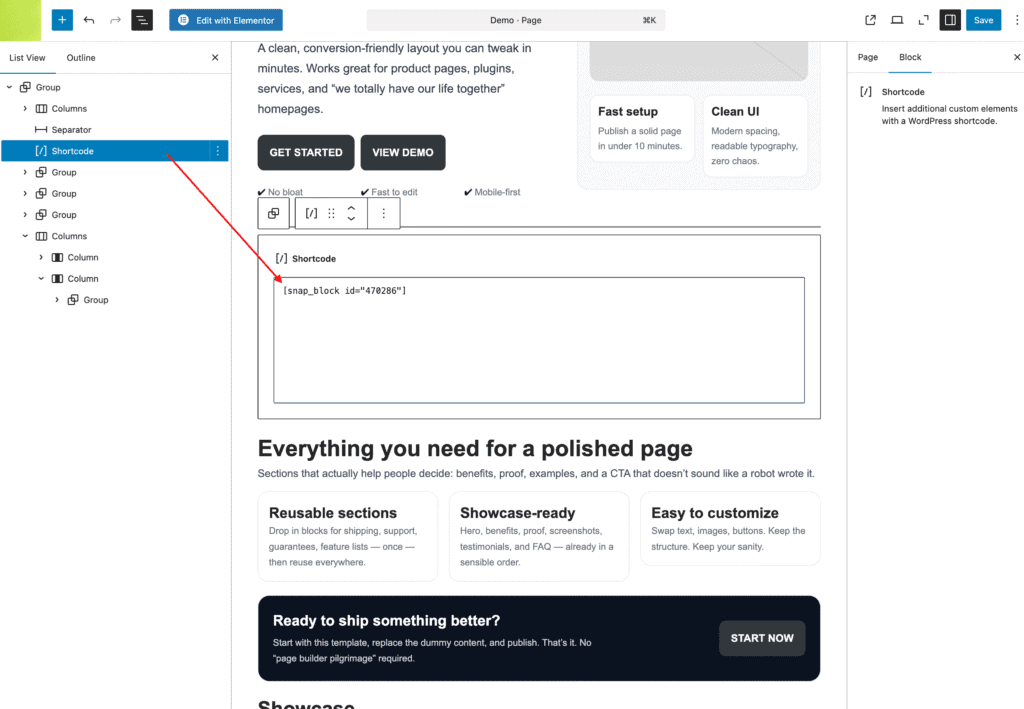
Once copied, the shortcode can be inserted into content using a Shortcode block in the WordPress Block Editor.
The block will be rendered automatically on the page, just like when inserted via a page builder.
Duplicate a Snap Block
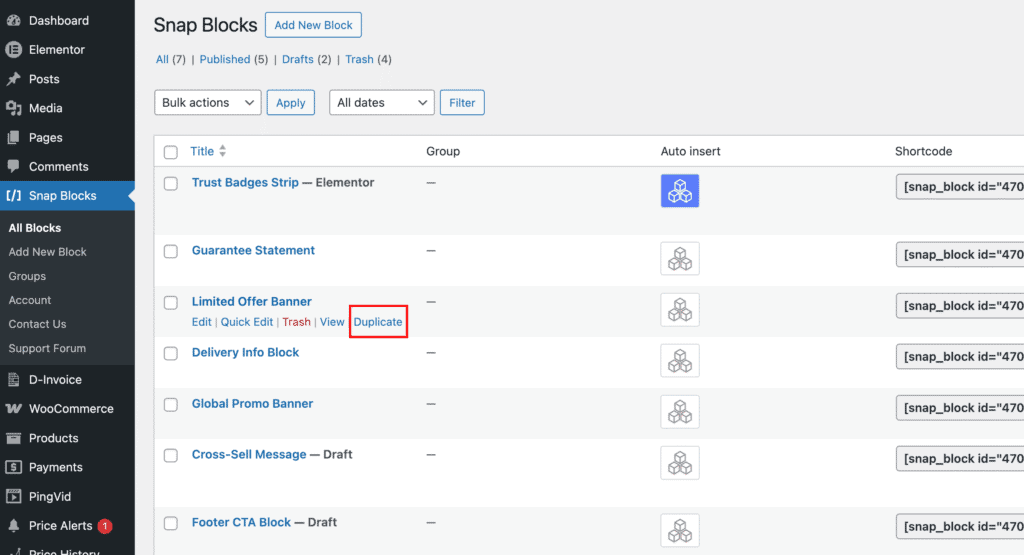
Snap Blocks include a Duplicate option directly in the admin list view.
When hovering over a block in Snap Blocks → All Blocks, you’ll see the Duplicate link alongside Edit, Quick Edit, View, and Trash.
This is especially useful when:
- You want a similar layout with small content changes
- You need variations of the same banner or section
- You’re testing different designs without starting from scratch
It saves time and keeps your workflow clean.