
Everyone who subscribes through your forms, popups or WooCommerce store is saved here, in your WordPress database. From here you can find subscribers, download them for your email tool and delete the ones you no longer need.
Where: Easy Subscribe → Subscribers.
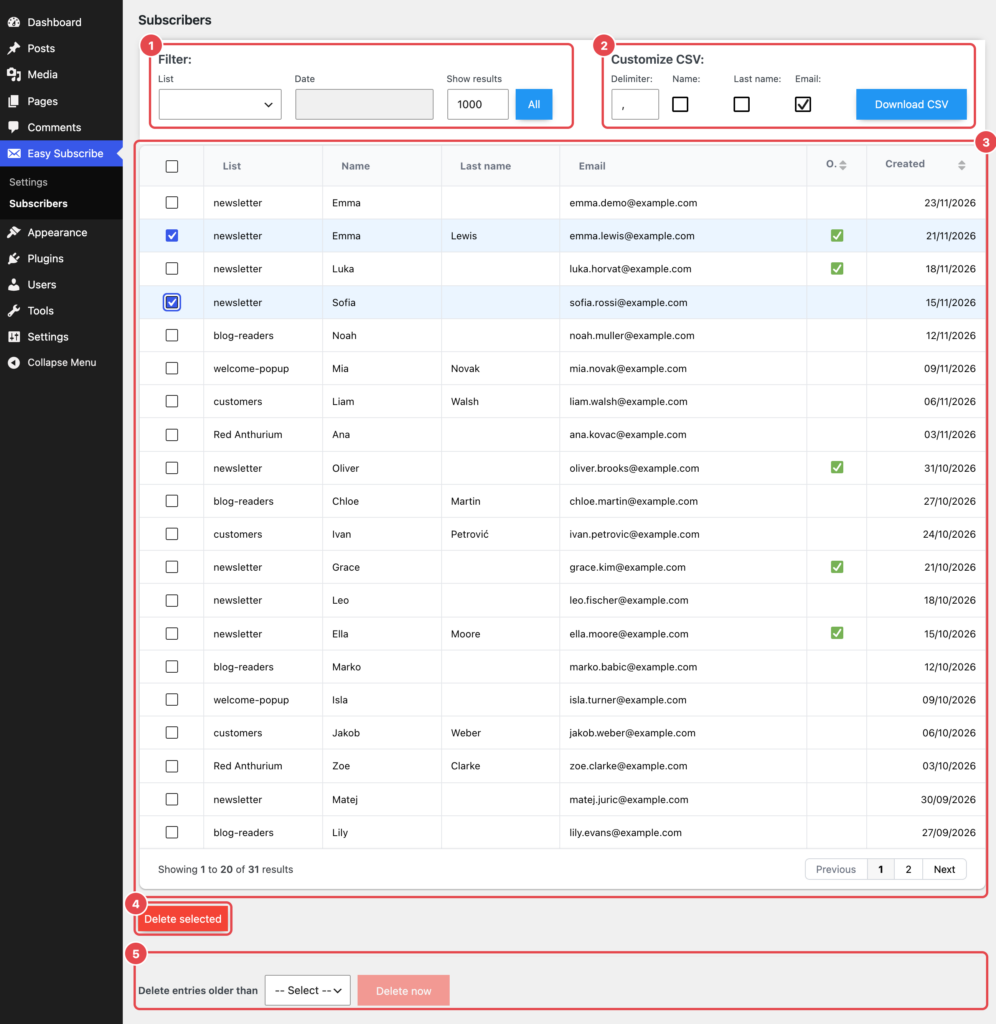
Find subscribers
The filter (1) narrows down the table:
- List: one list or All. The number next to each list is how many subscribers it has.
- Date: click the box and pick a start and an end date, for example everyone who subscribed last month.
- Show results: how many subscribers to load, the newest first. Default: 1000. Click All to load every subscriber.
The table
The table (3) shows 20 subscribers per page, the newest first:
- List: the list they joined.
- Name and Last name: when the form asked for them.
- Email.
- Opt-In?: a check mark when the subscriber confirmed the address through double opt-in, or subscribed while logged in with their own account email.
- Created: the date they subscribed.
Click Opt-In? or Created to sort the table by that column.
Download a CSV file
A CSV file is a simple spreadsheet that every email tool can import, and that opens in Excel, Numbers or Google Sheets too.
- Use the filter to show the subscribers you want, for example one list.
- In Customize CSV (2), tick the columns to include: Name, Last name, Email.
- Change the Delimiter if your email tool or spreadsheet asks for one, for example
;for Excel in many European languages. Default:,. - Click Download CSV.
The file includes every subscriber the filter shows, on all pages of the table, not only the 20 on screen. If you have more subscribers than Show results, click All first.
Tip: Download each list separately and import it into its own group or tag in your email tool. That keeps “blog readers” and “customers” apart there too.
Delete subscribers
Delete selected
Tick the subscribers in the first column of the table and click Delete selected (4). The tick box in the header selects every subscriber on the page.
Delete entries older than
(5) Deletes every subscriber, on all lists, who subscribed more than 30 days, 3 months, 6 months or 12 months ago. Pick a period, click Delete now and confirm.
Use it if your privacy policy says you keep addresses only for a set time, or after you’ve moved everyone into your email tool.
Warning: Deleted subscribers can’t be restored. Download a CSV file first if you might need them.
Unsubscribes
Easy Subscribe collects subscribers but doesn’t send newsletters, so your email tool handles the unsubscribe links. When someone asks you to remove their address, unsubscribe them in your email tool and delete them here too, so they’re not imported again with your next export.