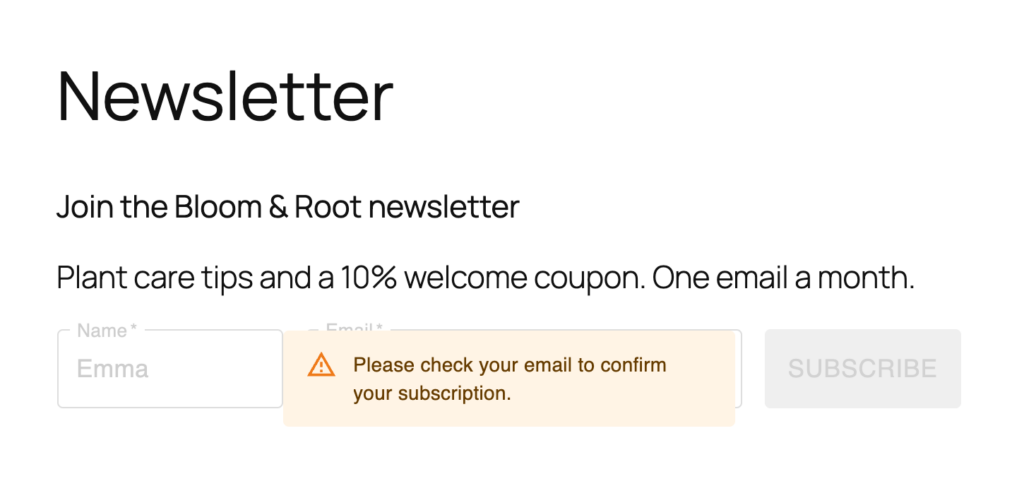
What happens when someone subscribes: the list they join, whether they confirm their address first, where they go next and the messages they see.
Where: Easy Subscribe → Settings → Forms → (your form) → Subscription.
After signup
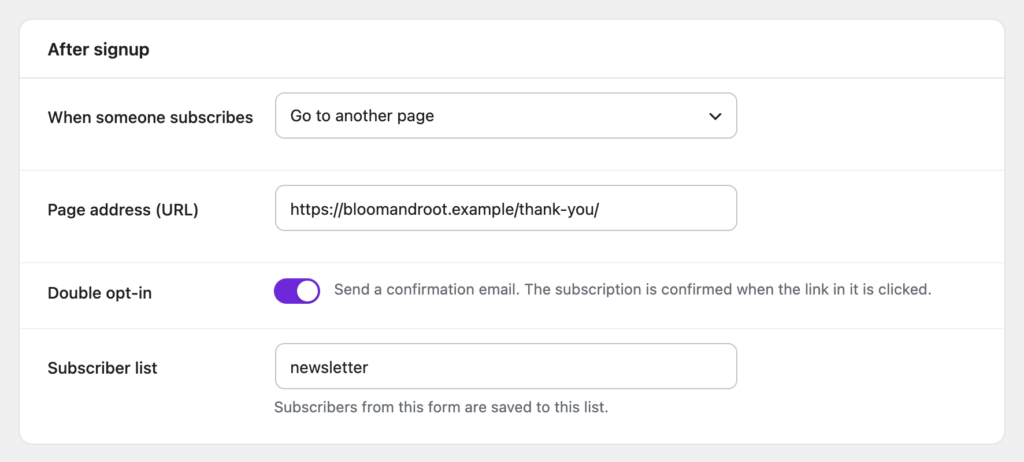
When someone subscribes
- Show a message (default): the visitor stays on the page and sees the Subscribed message under the form.
- Go to another page: the visitor is taken to the page in Page address (URL), for example your own thank-you page.
A thank-you page is a good place for the next step: the welcome coupon, a link to your best articles or a short “check your inbox” note. It can also tell you how many signups you get, as it’s a page you can count visits to in your analytics.
Tip: With double opt-in, visitors go to the thank-you page right away, before they’ve confirmed. Remind them there to click the link in the email.
Double opt-in
New subscribers get an email with a confirmation link. They’re marked as confirmed only after they click it.
Double opt-in keeps your list clean: no typos, no fake addresses and no one signed up by someone else. It’s also the safest way to show that every subscriber really wanted your emails, which matters under GDPR and for most email tools.
How it works for the subscriber:
- They subscribe and see “Please check your email to confirm your subscription.”
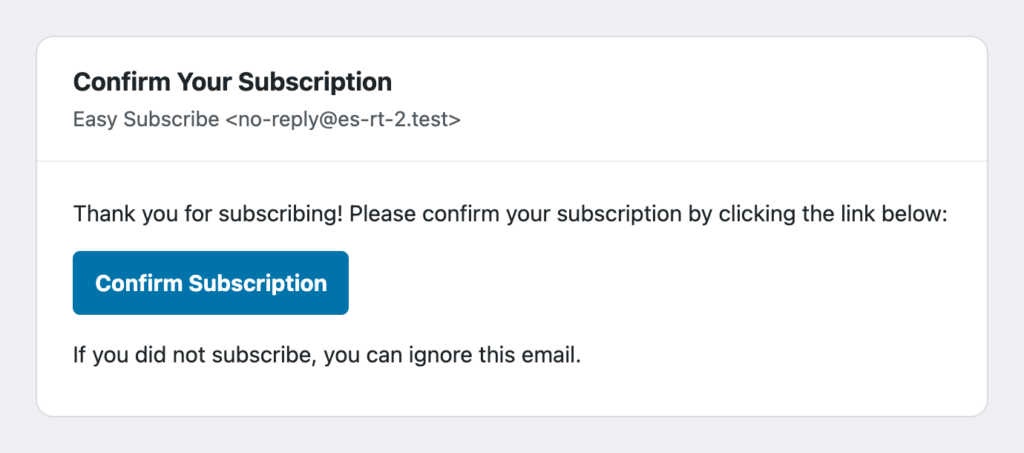
- They get an email, “Confirm Your Subscription”, from no-reply at your site’s domain.
- They click Confirm Subscription. Your site opens on the page where they subscribed and shows the Subscribed message.
On the Subscribers page, confirmed subscribers have a check mark in the Opt-In? column. Subscribers who haven’t clicked the link are in the list without it.
Note: The email is sent by your WordPress site. If it doesn’t arrive (check the spam folder too), your site’s email sending needs a hand. An SMTP plugin, such as WP Mail SMTP or FluentSMTP, sends WordPress email through a real mailbox and fixes this for most sites.
Logged-in visitors who subscribe with their own account email are confirmed right away, without an email.
Subscriber list
The list this form’s subscribers are saved to. Default: subscribers. Type any name to create a new list. There’s nothing else to set up.
Lists keep your audiences apart. You might use:
- newsletter for the form on your newsletter page;
- blog-readers for the form after blog posts;
- spring-sale for a popup on a sale page.
On the Subscribers page you can then show and download one list at a time, and import each into the right group in your email tool.
An email address can be on several lists, but only once on each. Someone who subscribes twice to the same list sees the Already subscribed message instead.
Tip: Lowercase names with hyphens, like blog-readers, are easy to recognize later and work well when you import them into your email tool.
Messages
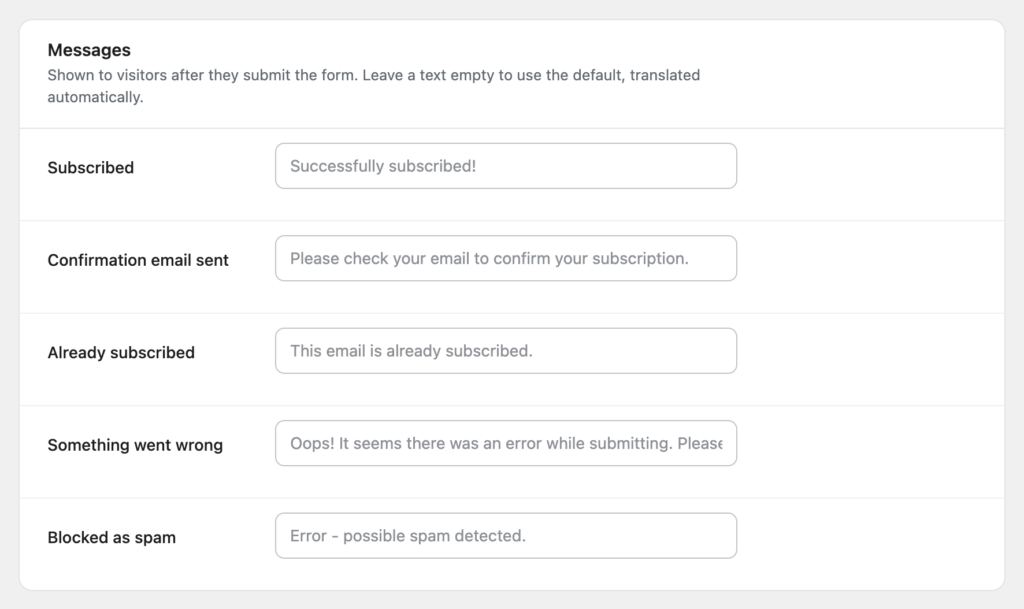
The messages visitors see under the form. Each form has its own, so a popup with a coupon can say something different from your newsletter page.
- Subscribed: the signup worked. Default: “Successfully subscribed!”
- Confirmation email sent: double opt-in is on and the email is on its way. Default: “Please check your email to confirm your subscription.”
- Already subscribed: the address is already on the form’s list. Default: “This email is already subscribed.”
- Something went wrong: the signup couldn’t be saved, for example because the address isn’t valid. Default: “Oops! It seems there was an error while submitting. Please refresh the page and try again…”
- Blocked as spam: the spam protection caught a bot. Default: “Error – possible spam detected.”
Leave a message empty to use its default, translated automatically into your site’s language. Write your own to match your tone, for example “You’re in! Your coupon is on its way.”