
Popups are part of Easy Subscribe Pro. In the free version, the Popup section shows a preview of the designs. See the plans.
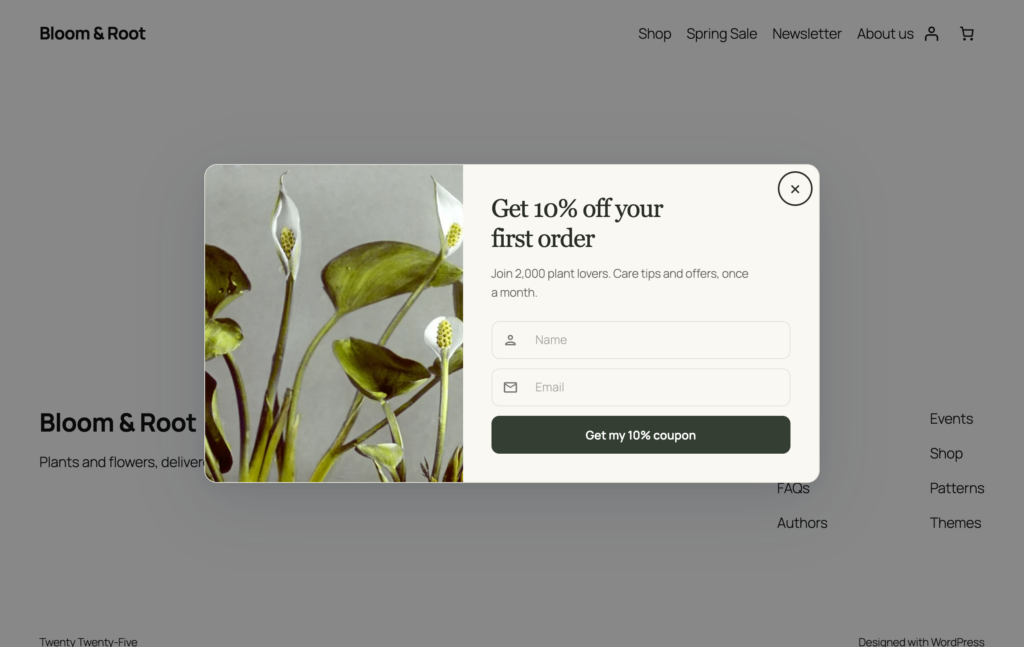
Any form can open in a popup: in the middle of the screen with your own image, or as a small box in a corner. Choose when it opens, on which pages and how often, so it shows up at the right moment without getting in the way.
Why use a popup
A form at the bottom of a page is easy to miss. A popup puts your offer in front of visitors while they’re still interested, which is why it usually collects more subscribers than a form on the page alone.
Popups work best with a clear reason to subscribe:
- A welcome discount: “Get 10% off your first order” on every page except the cart and checkout.
- Early access: a “Get early access” button on a sale page opens the popup, so only interested visitors see it.
- More from the blog: a small corner box on your articles invites readers to get the next one by email.
- A free download: a checklist or guide in exchange for an email address.
You stay in control of how often it shows. Visitors who closed it don’t see it again for a few days, and visitors who subscribed don’t see it again at all.
How popups work
The popup shows a form you already have, with that form’s fields, list and messages. So you can:
- use the same form on a page and in a popup, or
- add a form just for the popup, with its own list and button text (see Multiple Forms).
Popups have their own designs and colors. The form on your pages keeps its own style.
Where: Easy Subscribe → Settings → Forms → (your form) → Popup.
Popup

Show in a popup
Turns the popup on for this form. The form itself must be on too (Enable Form in the form header). If the form is set to Logged-in visitors only, the popup follows that as well.
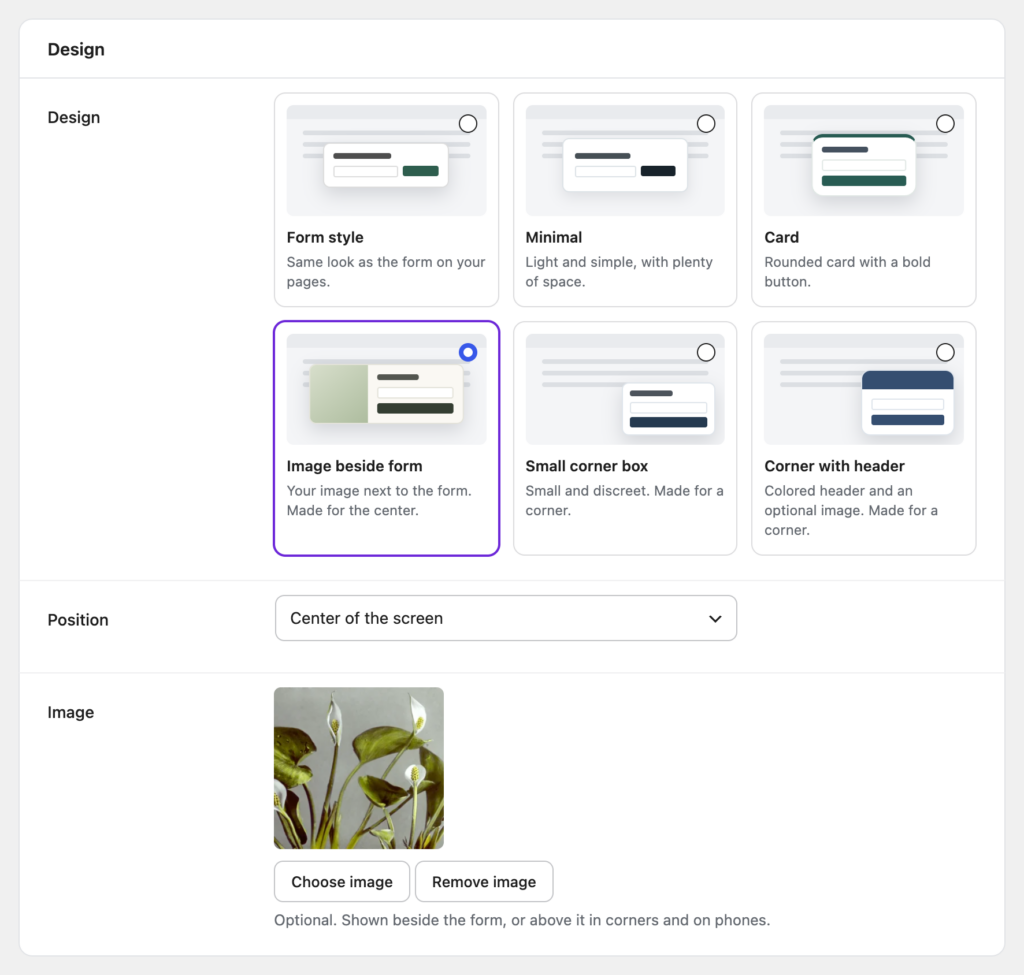
Design
Design
- Form style: the popup shows the form exactly as it looks on your pages.
- Minimal: light and simple, with plenty of space.
- Card: a rounded card with a bold button.
- Image beside form: your image next to the form. Made for the center of the screen.
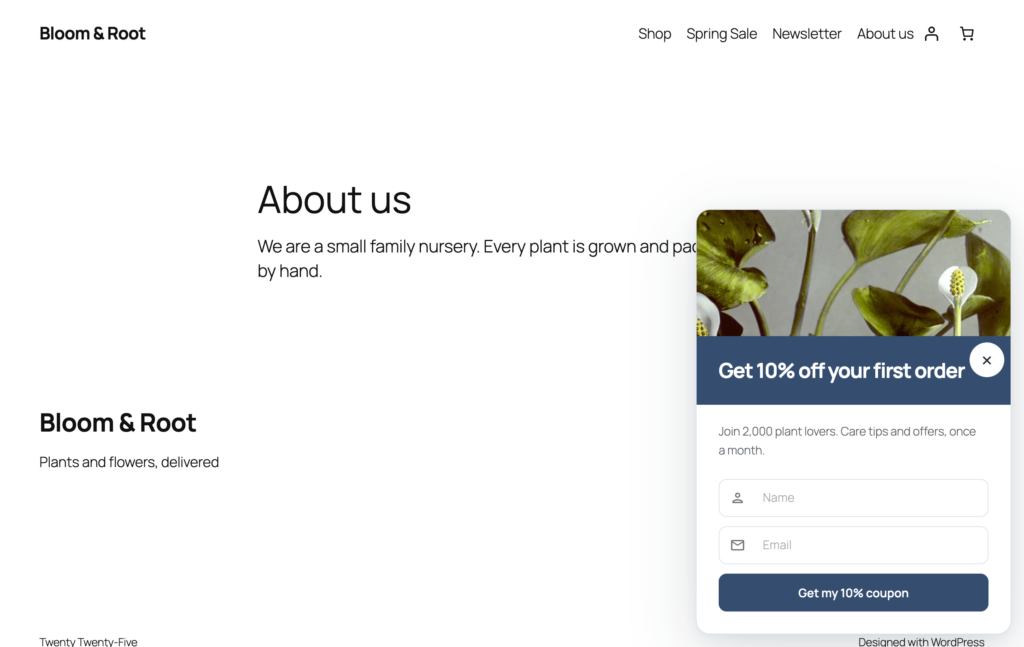
- Small corner box: small and discreet. Made for a corner.
- Corner with header: a colored header and an optional image. Made for a corner.
Picking a design that’s made for the center or a corner also sets the Position for you. You can change it afterwards.
Position
Center of the screen (default), or one of the four corners. A centered popup asks for attention. A corner popup lets visitors keep reading.
Image
Used by Image beside form and Corner with header. Click Choose image to pick one from your media library. It shows beside the form, or above it in a corner and on phones. A photo of your product, your shop or the free download works better than a stock photo.
Colors and size
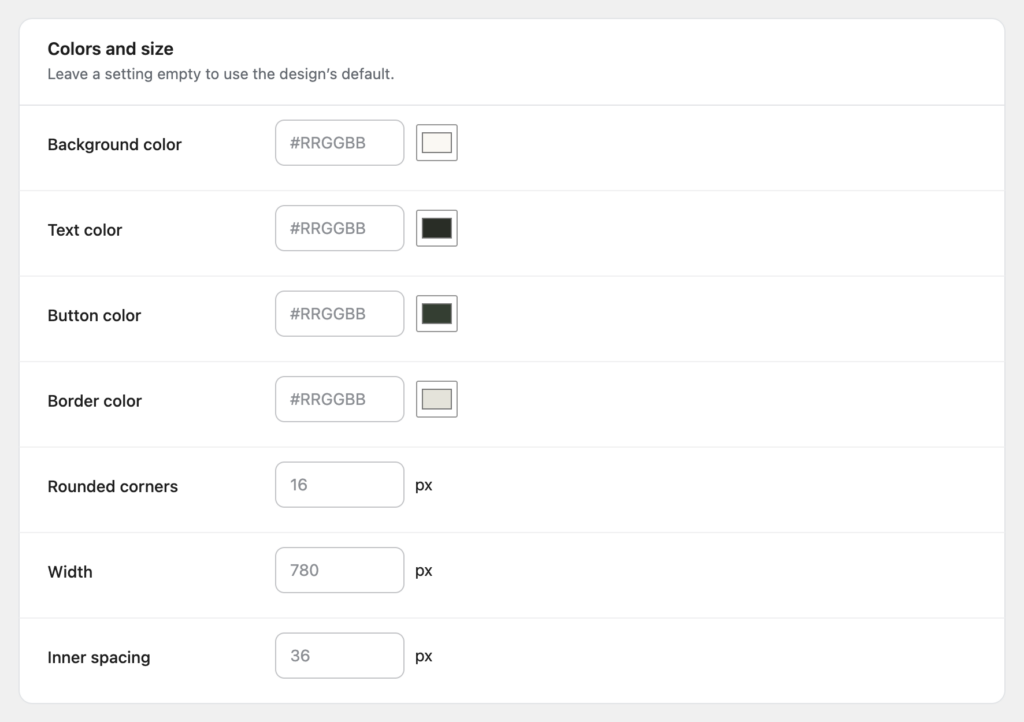
Change the chosen design’s Background color, Text color, Button color, Border color, Rounded corners, Width and Inner spacing. Leave a setting empty to keep the design’s own value. The button text turns black or white by itself, whichever is easier to read.
This card doesn’t show with the Form style design, which uses the form’s own colors from the Style section.
Popup text
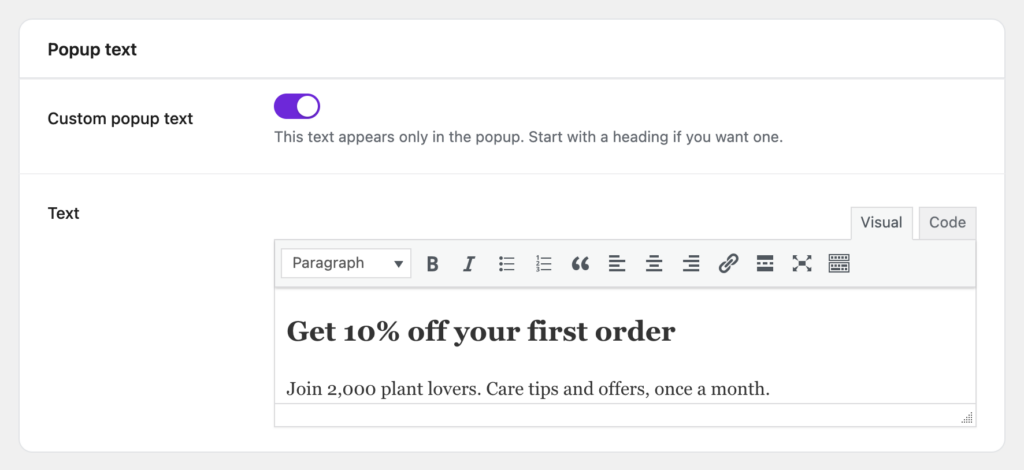
Custom popup text
- Off: the popup shows the same text as the form, Text above the form in the Form section.
- On: the popup shows its own text. Start it with a heading if you want one.
A popup usually needs a stronger hook than the form on a page. For example: the form on your newsletter page says “Plant care tips, once a month”, and the popup says “Get 10% off your first order”.
When to open
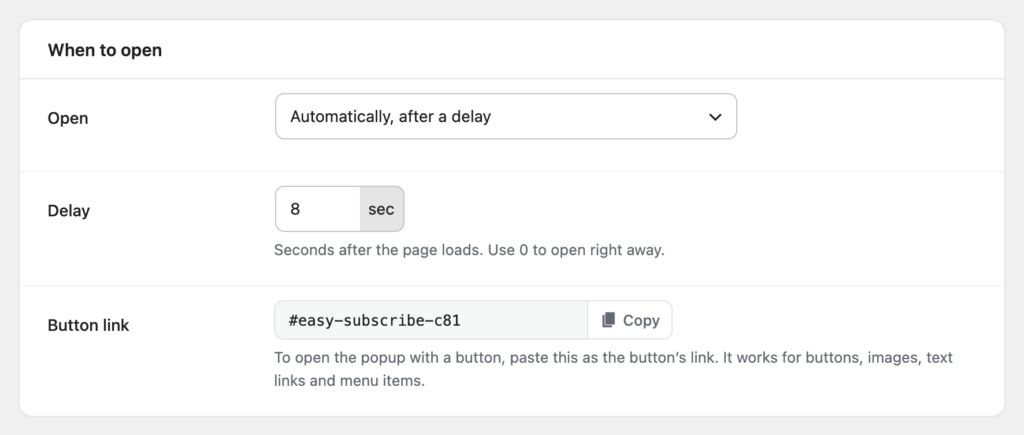
Open
- Automatically, after a delay (default): the popup opens by itself.
- Only when a visitor clicks a button: the popup opens only from a button or link you add to your pages.
Delay
Seconds after the page loads. Default: 5. Use 0 to open it right away. A short wait lets visitors look at the page first: 5–15 seconds is a good start.
Button link
The address to use as the link of a button, an image, a text link or a menu item. Clicking it opens the popup instead of going to another page, even if the visitor has already seen or closed it.
With Only when a visitor clicks a button, the link works on every page. With Automatically, after a delay, it works on the pages chosen under Where to open, so you can open the popup by itself and from a button.
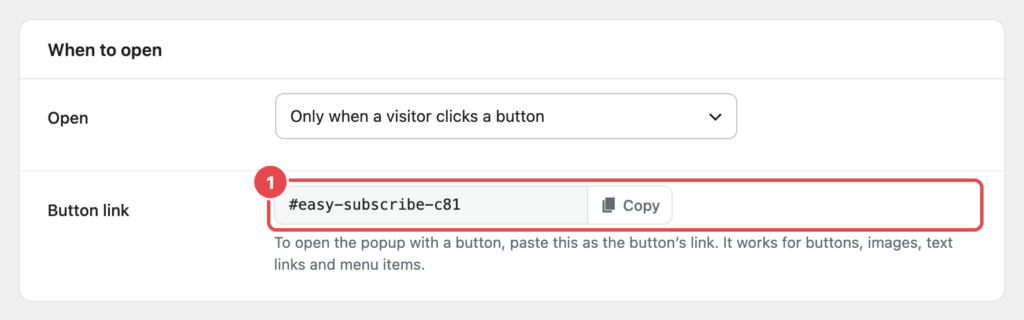
The first form’s popup is #easy-subscribe. Other forms have their own, like #easy-subscribe-c81.
Example: a button that opens the popup
- Click Copy next to Button link.
- Edit the page, add a Buttons block and type the button text, for example “Get early access”.
- Click the link icon in the button’s toolbar, paste the address and press Enter.
- Save the page. Clicking the button now opens the popup.
To use a menu item, add a Custom Link in Appearance → Menus (or the Navigation block) with the same address.
You can also link straight to the popup from anywhere else: a social media post or an email linking to https://your-site.com/#easy-subscribe opens your site with the popup open.
Where to open
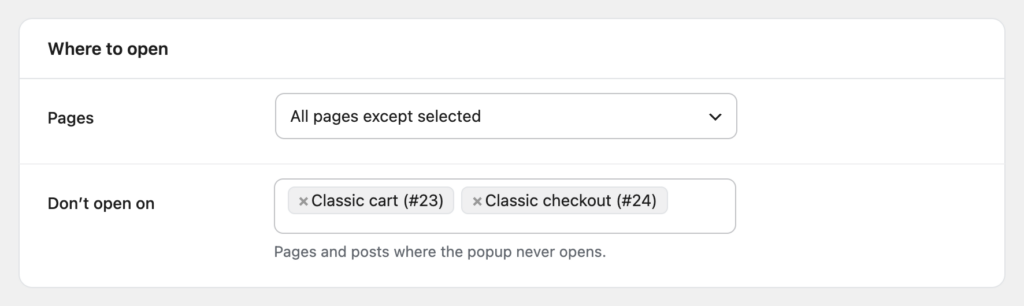
These settings show when the popup opens automatically. A popup that opens only on click is available on every page, wherever you add its button.
Pages
- All pages (default).
- Only selected pages: choose them in Open on. With none selected, the popup opens nowhere.
- All pages except selected: choose them in Don’t open on. A good choice for a discount popup: leave out the cart and checkout, where visitors are already buying.
Start typing a page or post title in the box to find it.
How often
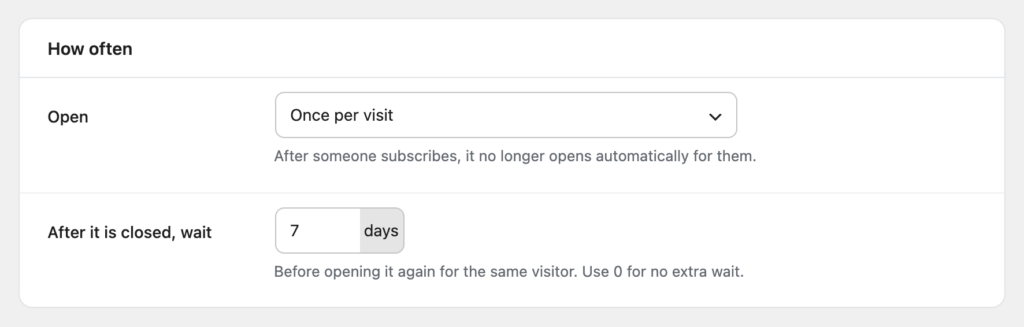
Open
- Once per visit (default): once, then not again until the visitor comes back another time.
- On every page view: every time a page loads, until the visitor closes it or subscribes.
After someone subscribes, the popup no longer opens by itself for them.
After it is closed, wait
Days before the popup opens again for a visitor who closed it. Default: 7. Use 0 for no extra wait.
Tip: Your browser remembers that you’ve seen, closed or used the popup, just like your visitors’ browsers do. To test it again, open the page in a private browser window.
Example: a welcome coupon
- Add a form for the popup (Add form), set its Subscriber list to
welcome-popupand its button to “Get my 10% coupon”. - In Subscription, change the Subscribed message to tell visitors where the coupon is, or send them to a thank-you page with the code.
- In Popup: switch on Show in a popup, pick Image beside form and choose a photo of your products.
- Switch on Custom popup text and write “Get 10% off your first order” as a heading, with one line below it.
- Open: Automatically, after a delay, Delay 8 seconds.
- Pages: All pages except selected, and choose the Cart and Checkout pages.
- Open: Once per visit, and wait 7 days after it’s closed.
- Switch on Enable Form and save.