
This guide explains how to use Per-Post Video Overrides in the PingVid plugin.
When enabled for specific post types in the General Settings, a new metabox will appear on the edit screen of those posts, pages, or products. This allows you to override the global video settings and assign a unique video to individual posts.
Per-post overrides are especially useful if you want different videos to play on different products, blog posts, or landing pages, instead of showing the same global video everywhere.
Note: Per-Post Video Overrides are a Pro feature.
PingVid Metabox
When Per-Post Video Overrides are enabled for a post type, a PingVid metabox appears on the edit screen. Below is an example from a product page, but the same rules apply to all supported post types (e.g., posts, pages, or custom types).
The exact position of the metabox may vary depending on your theme and other plugins, but it will always appear in the sidebar area of the editor.
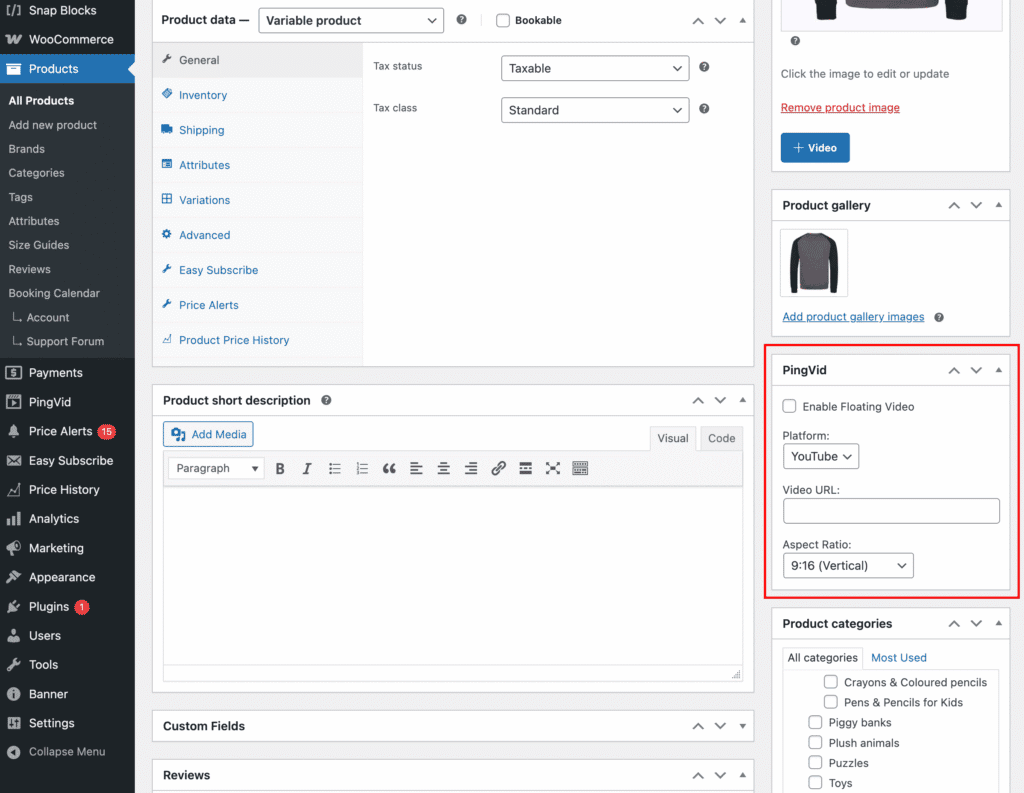
Enable Video
Turn the floating video widget on or off for this specific post. If disabled, the post will use the global video settings (if enabled) or show no video at all.
Video Platform
Select the video provider. Currently, only YouTube is supported.
Video URL
Paste the URL of the YouTube video you want to display for this post.
Aspect Ratio
Choose the aspect ratio for this post’s video. Select the format that best matches your YouTube video:
- 16:9 (Widescreen) – Standard for most YouTube videos.
- 4:3 (Standard) – Older format, rarely used.
- 1:1 (Square) – Sometimes used for embeds.
- 9:16 (Vertical) – Ideal for YouTube Shorts.