
Confirmation Email and Price Drop Alert Email now behave exactly like any other WooCommerce transactional emails. You can customize their subject and heading, adjust content, preview them, and send test emails directly from the WooCommerce → Settings → Emails screen. They follow the same rules, same UI, and the same email-template structure you’re already familiar with.
Note: The email system has been fully refactored to use WooCommerce’s native transactional email framework. All settings saved in versions earlier than 1.1.0 will still be used automatically, so nothing is lost after updating.
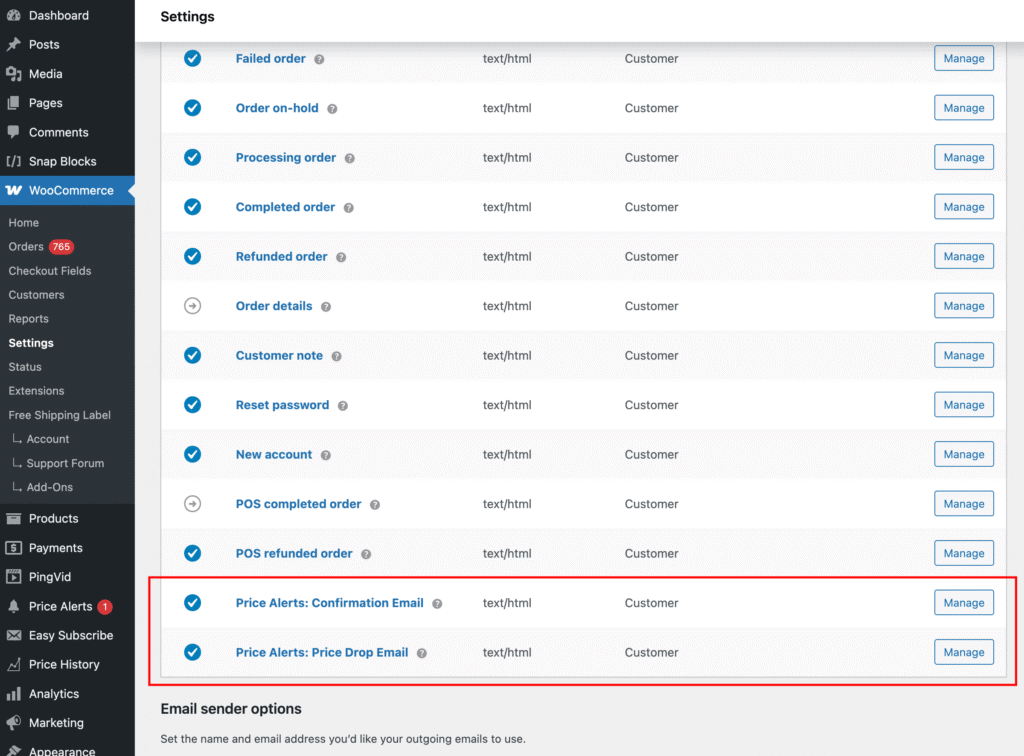
Confirmation Email
This is the double opt-in email sent to users who subscribe using the Price Alerts form (if double opt-in is enabled).
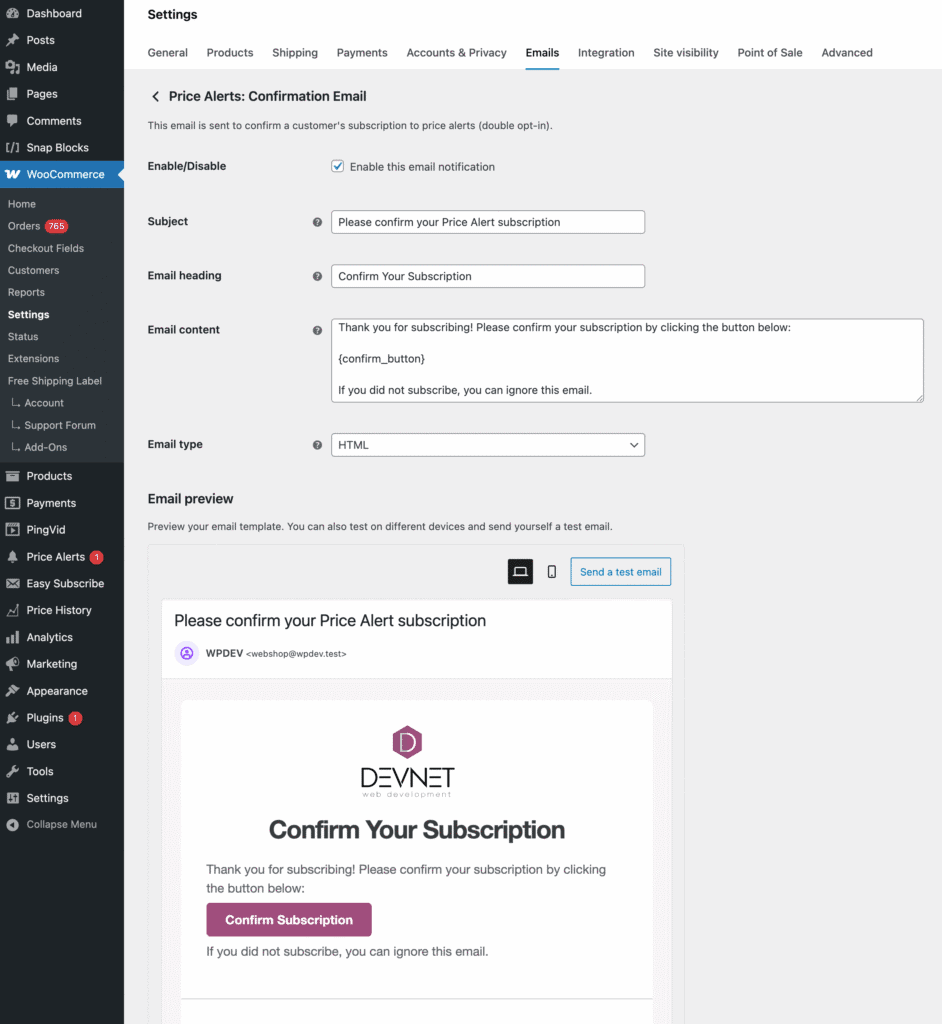
Placeholders
In the confirmation email content, you must include{confirm_button}. This placeholder is automatically replaced with the actual confirmation button the user must click to complete their subscription.
If it’s missing, users won’t be able to confirm their email address.
Price Drop Email
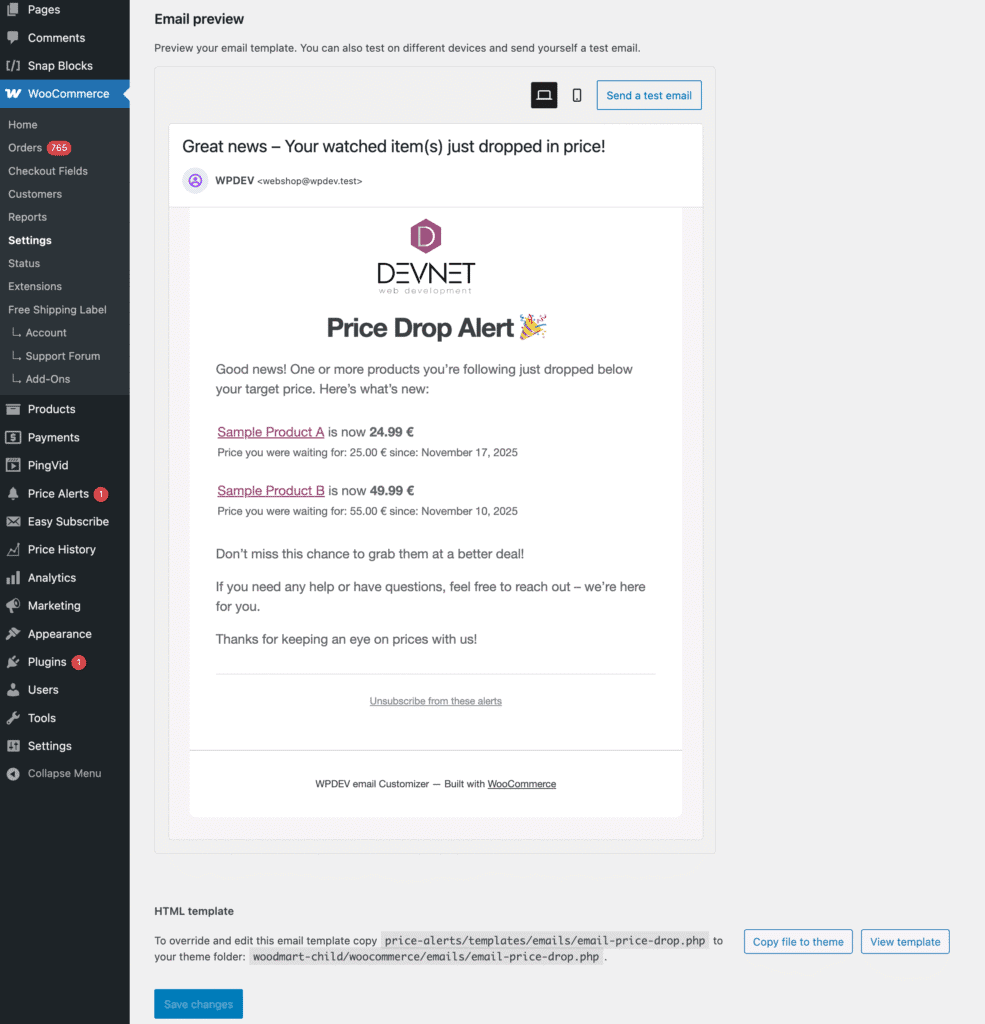
Customize the content of the email that subscribers receive when a product’s price drops to meet their target.
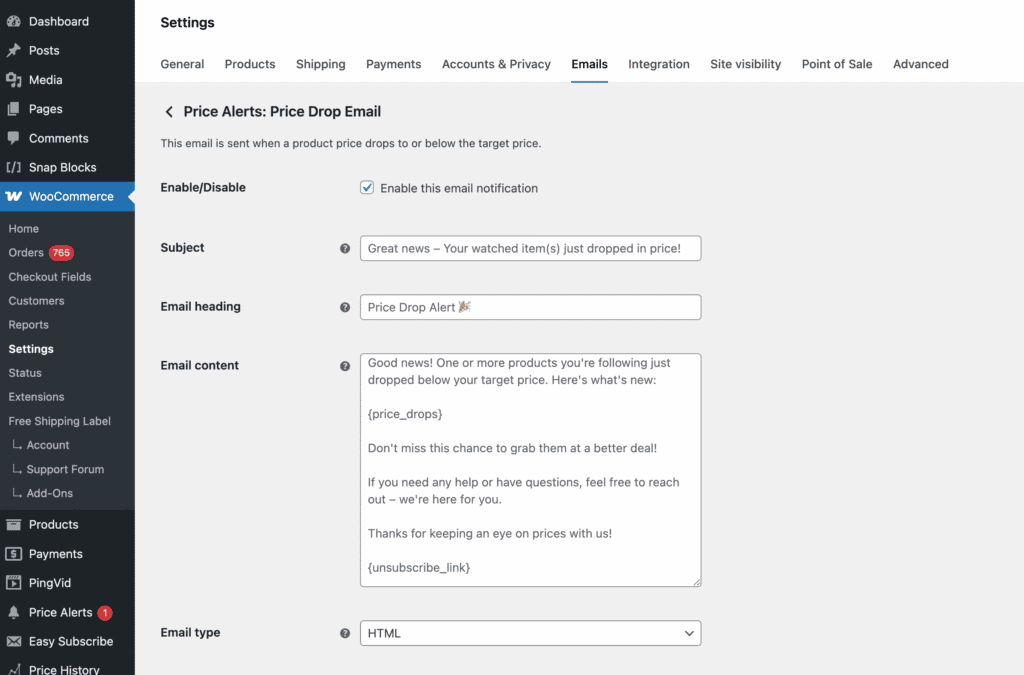
Placeholders
Use {price_drops} to output the list of products whose prices have dropped. The plugin automatically replaces this placeholder with the full product details for that notification.
Use {unsubscribe_link} to insert the unique unsubscribe URL for that subscriber.
Block-Based Email Editor
Price Alerts fully supports WooCommerce’s new block-based email editor.
To enable it, go to WooCommerce → Settings → Advanced → Features and turn on Block Email Editor (alpha).
Once enabled, both confirmation and price-drop emails can be customized directly in the block editor, just like the core WooCommerce emails. You can adjust layout, content blocks, colors, and styling with the same flexibility you get from native WooCommerce email templates.