
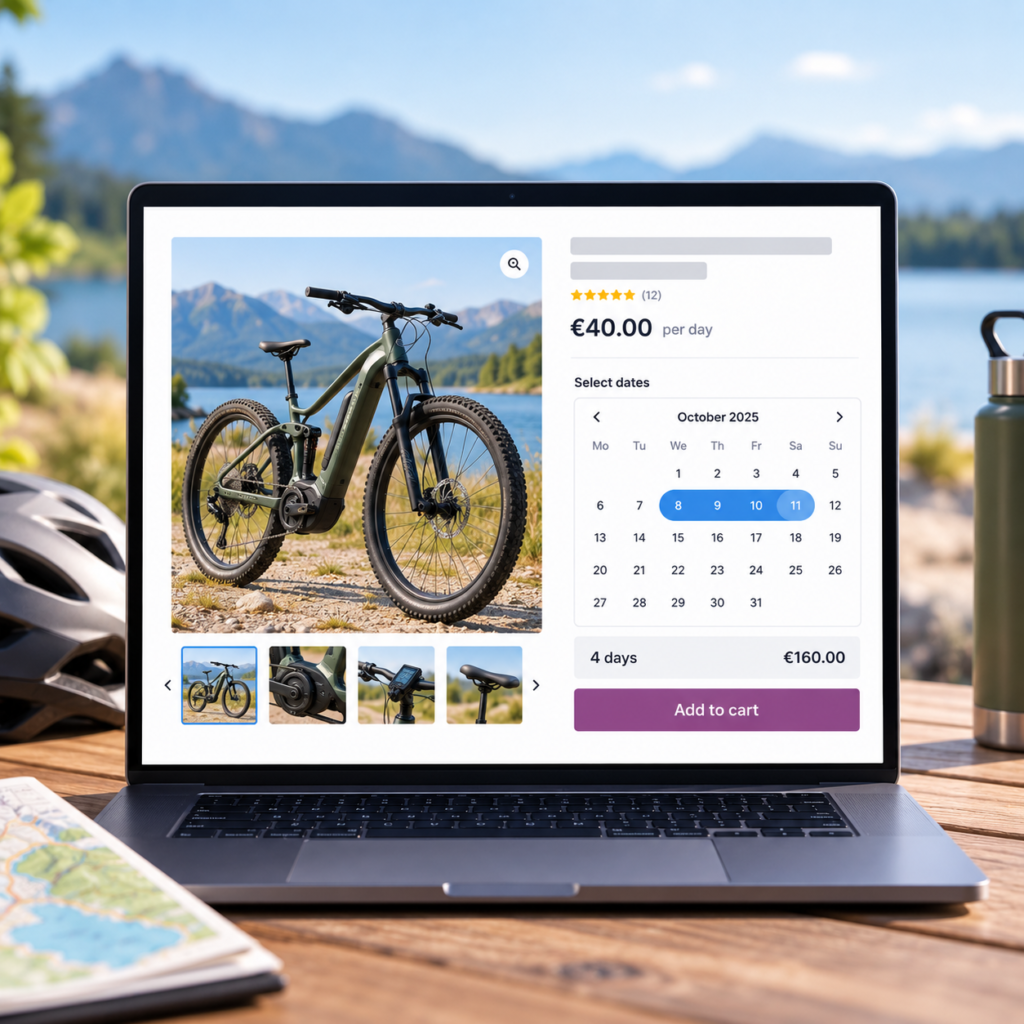
WooCommerce has no bookable product out of the box. A standard product has a price and a stock level. It has no calendar, no dates and no way to stop two customers from buying the same weekend. To make a product bookable you need a plugin, and the kind of plugin decides how much of your existing product setup you keep.
Whatever you use, a bookable product has three jobs:
- Let the customer choose dates.
- Calculate the price from those dates.
- Take booked dates off the calendar so nobody else can buy them.
Many setups only handle the first job, which is how a store ends up selling the same weekend twice.
Three ways to put dates on a product
A date field. Product add-on plugins can put a date picker on any product. You can disable past dates, weekends or holidays, but the field doesn’t know what has already been sold. Barn2’s guide to its own date picker describes exactly this: dates you mark unavailable by hand, not dates removed after a purchase. That works for a delivery date or an event date. It doesn’t work for anything that can only be rented once per day.
A booking product type. With WooCommerce Bookings, the official extension, you choose “Bookable Product” from the product type dropdown. Bookings are set up in blocks of minutes, hours, days, weeks or months, and you can add resources, persons and buffer times. It handles appointments and complex schedules as well as rentals. The trade-off is that your product becomes a different product type with its own settings.
A booking calendar on an existing product. Some plugins leave the product as it is: simple or variable, with its normal price, cart, checkout and order emails. They add a calendar, a price based on the selected dates, and tracking of booked dates. It’s the lightest way to make a product bookable, and the steps below use it, with Devnet’s Easy Booking Calendar as the example.
| Date field add-on | Booking product type | Calendar on an existing product | |
|---|---|---|---|
| Customer picks dates | Yes | Yes | Yes |
| Price follows the number of days or nights | Not by default | Yes | Yes |
| Sold dates become unavailable | No | Yes | Yes |
| Time slots, resources, persons | No | Yes | Usually not |
| Keeps your existing product type | Yes | No | Yes |
Decide these before you configure anything
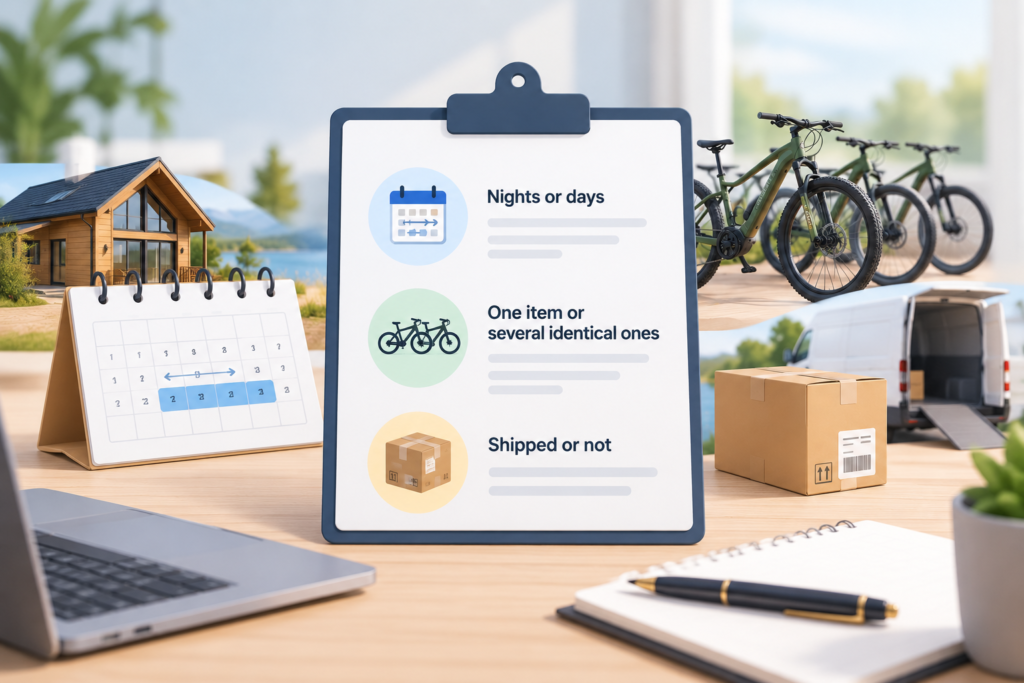
Nights or days
Counting by nights charges for the nights between the two dates. Counting by days charges for every date selected. The same selection gives different totals: January 1 to 3 is 2 nights or 3 days, so a €80 rate comes to €160 or €240.
Nights fit stays, where the guest arrives on the 1st and leaves on the 3rd. Days fit hire, where the item is out of your hands on both the pickup date and the return date: tools, costumes, a camera kit, a camper van handed over in the morning.
Both methods count calendar dates, not hours. If you price in 24-hour periods from a pickup time, the way car hire companies do, you need a booking plugin that handles time.
One item or several identical ones
A bookable product usually stands for one thing that can be booked once per date. With one camper van, that’s simple. With five identical kayaks, you need either one product per kayak or a plugin that tracks a quantity per date.
Easy Booking Calendar doesn’t have per-date capacity. One product is one bookable unit, and the only alternative is allowing unlimited overlapping bookings. The same applies to variations: all variations of a product share one calendar. Use variations for price options on the same item, such as with or without delivery, rather than for separate physical items. If small, medium and large bikes each need their own availability, make them separate products.
Shipped or not
Most bookings don’t ship anything. Mark the product Virtual so WooCommerce skips shipping fields and shipping costs at checkout. If you deliver rental equipment, leave the product physical and charge for delivery through your shipping settings as usual.
Making a product bookable with Easy Booking Calendar
Easy Booking Calendar is free on WordPress.org. The steps below use free features unless marked as Pro.
1. Set the store-wide booking rules
The settings live under Products > Booking Calendar. A few of them change how bookings work:
- Booking calculation mode: by nights or by selected days. This applies to every bookable product in the store.
- Allow double bookings: leave it off. When it’s off, booked dates become unavailable to other customers.
- Availability mode: allow all dates, allow only dates you select, or disable dates you select. The last option handles holidays and closed days.
- Max future date allowed: how far ahead customers can book, from no limit down to one week.
The rest is presentation: calendar language, date format, theme and colour, the heading above the calendar, the button text (default “Book Now →”), whether the calendar is open when the page loads, and whether it’s shown only to logged-in customers. The quantity field is hidden on bookable products by default, because a booking is one cart line however many days it covers. The calendar settings documentation and product settings documentation describe each option.
2. Mark the product as bookable
Edit the product. In the Product data box, tick Bookable next to the product type dropdown, and tick Virtual if nothing ships. Enter the regular price as the price for one night or one day, and the plugin multiplies it by the booked duration. If a sale price is active, that’s used instead.
Save the product. The calendar now appears on the product page above the add-to-cart button. For a variable product, the customer chooses a variation as usual, and the booking uses that variation’s price.
3. Place a test booking
Open the product page, select a date range and add it to the cart. The cart shows the booking as a single line with the dates, the duration in nights or days, and a price breakdown. The same details carry through to checkout, the order and the order emails, so you and the customer both have the dates in writing.
With Pro, you can also show a booking preview under the calendar. The customer sees the total and the breakdown before adding to cart, which helps once different dates carry different prices.
4. Find the booked dates
Once the product is saved as bookable, Product data gets an Easy Booking Calendar tab. It lists each booked date range, the number of days and the order behind it.
Pro adds two controls here. You can override the store-wide availability for this product only, for example to block a week while one item is in for repair. You can also click a booked date to release it. Releasing a date doesn’t change or cancel the order it came from.
When a date actually becomes unavailable
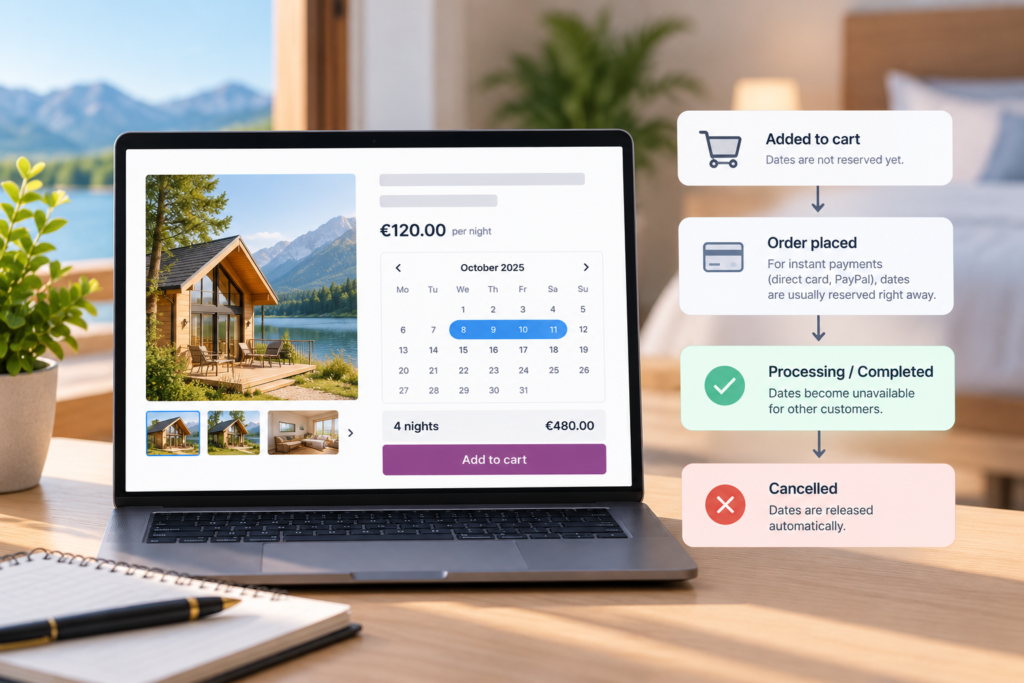
Easy Booking Calendar follows the WooCommerce order lifecycle. Selecting dates or adding a booking to the cart doesn’t reserve those dates yet. They become unavailable when the order reaches Processing or Completed, which normally means the payment has been confirmed.
With instant payment methods such as cards or PayPal, this usually happens immediately after checkout. Offline payment methods such as bank transfer normally leave the WooCommerce order On hold while payment is being confirmed. Once the order moves to Processing, the booked dates become unavailable.
Cancelled or refunded orders release their booked dates automatically. If you use Easy Booking Calendar Pro, you can also release individual dates manually from the product’s booking calendar without changing the order itself.
This approach keeps booking availability tied to WooCommerce orders rather than temporary cart sessions. As with WooCommerce stock, adding something to the cart doesn’t guarantee that it will remain available until the order is placed. If your store regularly has multiple customers competing for the same dates at exactly the same time, you may need a booking system with temporary reservation or cart-hold functionality.
Before going live, place a few test bookings using the payment methods your store accepts. Check when dates become unavailable and when they’re released so you know exactly how the booking flow works with your WooCommerce setup.
What the free version covers and what Pro adds
The free version covers the full basic booking flow. Pro is for stores whose products don’t all follow the same rules.
| Free | Pro | |
|---|---|---|
| Date-range calendar on the product page | ✓ | ✓ |
| Price per night or per day | ✓ | ✓ |
| Booked dates blocked automatically | ✓ | ✓ |
| Store-wide available and blocked dates, booking window | ✓ | ✓ |
| Different availability per product | ✓ | |
| Different prices for specific dates, weekdays or seasons | ✓ | |
| Booking total and breakdown before add to cart | ✓ | |
| Releasing individual booked dates | ✓ | |
| Single-date bookings | ✓ |
The Pro pricing rules raise or lower the base price by a fixed amount for chosen dates, or for a date range limited to certain weekdays. A weekend rule for summer, for instance, adds €15 to Friday and Saturday nights between June and August. When rules overlap, the first matching rule applies rather than adding up. The custom pricing documentation has worked examples. The Easy Booking Calendar page lists current Pro plans.
When you need a different kind of booking plugin
A calendar on an existing product handles date-range bookings of individual items. It’s the wrong tool if you need:
- time slots or appointments, such as a haircut at 14:00 or a two-hour lesson,
- a quantity per date, such as 20 places on a tour or five identical kayaks on one product,
- staff or resources assigned to bookings, or pricing per person,
- deposits or security holds taken when the customer books,
- calendar sync with Airbnb, Booking.com or Google Calendar,
- minimum stays or buffer days between bookings.
For those, look at a booking product type such as WooCommerce Bookings, which has a free Accommodation Bookings add-on for overnight stays, or at a rental plugin that tracks inventory per date. If your products are individual items rented by the night or the day, adding a calendar to the product you already have is the simpler route.