
Easy Booking Calendar can turn any WooCommerce product into a bookable product. Once enabled, customers can select booking dates directly from the product page, and the booking price is calculated automatically based on the selected dates.
Enable Bookings for a Product
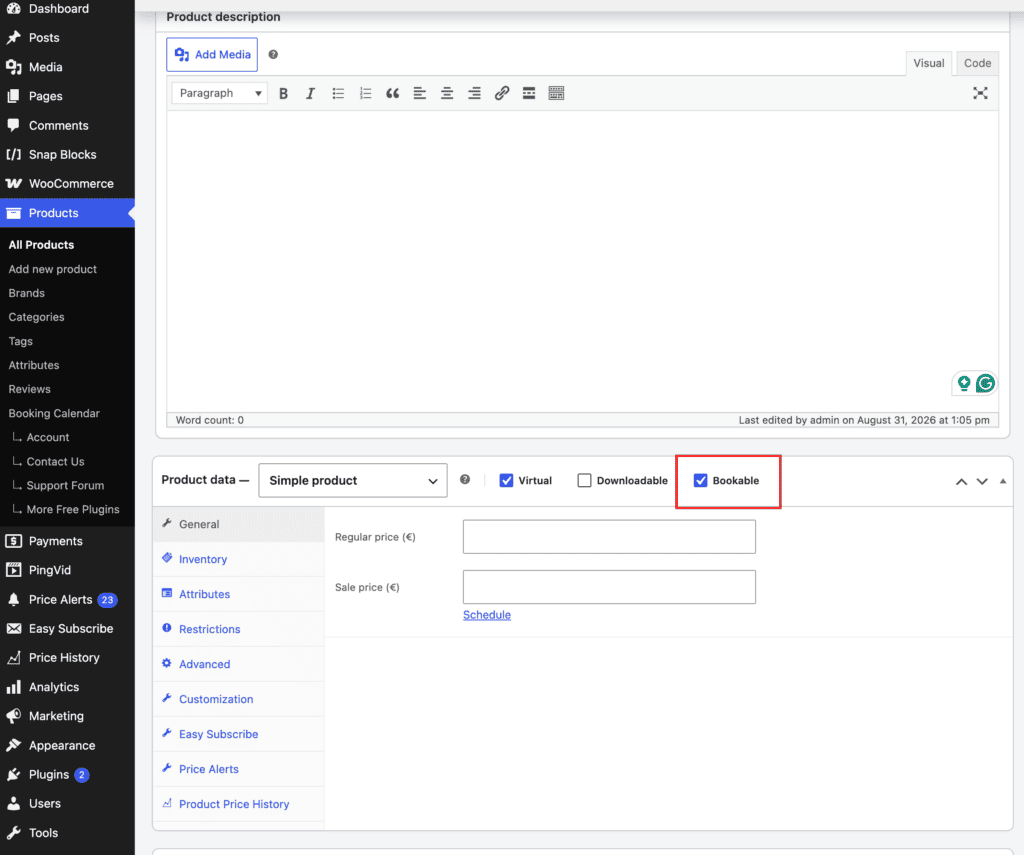
Edit the WooCommerce product you want to make bookable and enable the Bookable checkbox in the Product data section.
If the booking does not require shipping, we recommend also enabling the Virtual option. Virtual products do not require shipping information or shipping calculations during checkout, making them better suited for services, rentals, appointments, and similar bookings.
Set the product price as usual and save or update the product.
Once saved, the booking calendar will appear on the product page using the options configured in the Easy Booking Calendar settings.
Easy Booking Calendar Product Tab
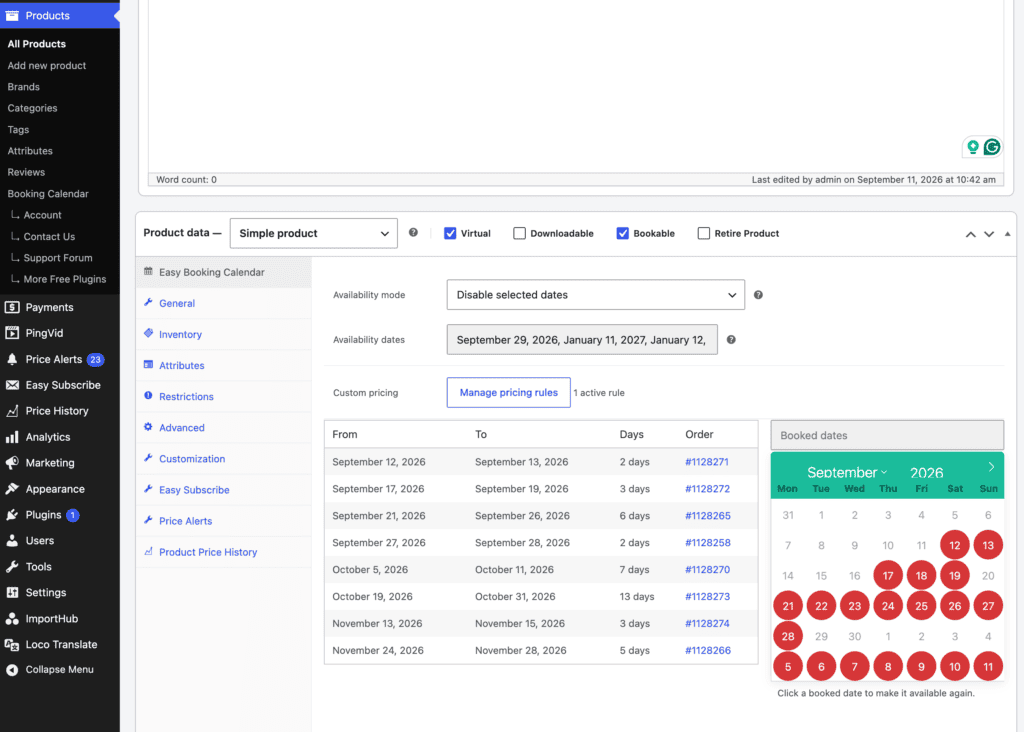
After the product is saved as Bookable, an Easy Booking Calendar tab is added to the Product data section.
From this tab, you can manage product-specific booking availability and view all booked dates for the product.
The bookings table shows the selected date range, number of booked days, and the associated WooCommerce order, making it easy to see which orders are responsible for each reservation.
Availability Mode
By default, bookable products use the global availability settings. You can override these settings for an individual product by selecting a different Availability mode and choosing the applicable dates.
Product-specific availability settings take priority over the global settings and apply only to the current product.
Product-specific availability is available in Easy Booking Calendar Pro.
Unbooking Individual Dates
Booked dates are highlighted in the calendar. To make an individual date available for booking again, simply click the booked date in the calendar.
This is useful when you need to release only a specific date without affecting the rest of the booking.
Note: Unbooking an individual date does not cancel or modify the associated WooCommerce order.
Custom Pricing
With Easy Booking Calendar Pro, you can set custom prices for specific dates or date ranges, allowing you to charge different rates for weekends, holidays, high season, or other periods.
See Custom Pricing for details on creating and managing pricing rules.