
The Price Compliance Manager provides a central place to manage Anchor Price data across your entire WooCommerce catalog without opening products individually.
You can review and edit anchor prices directly in the product table, filter products that still need attention, or use CSV import and export for larger catalogs.
The manager does not change your WooCommerce regular or sale prices. It only manages the Anchor Date and Anchor Price used by the Anchor Price module.
The Price Compliance Manager is available when the Anchor Price module is enabled.
Managing Anchor Prices
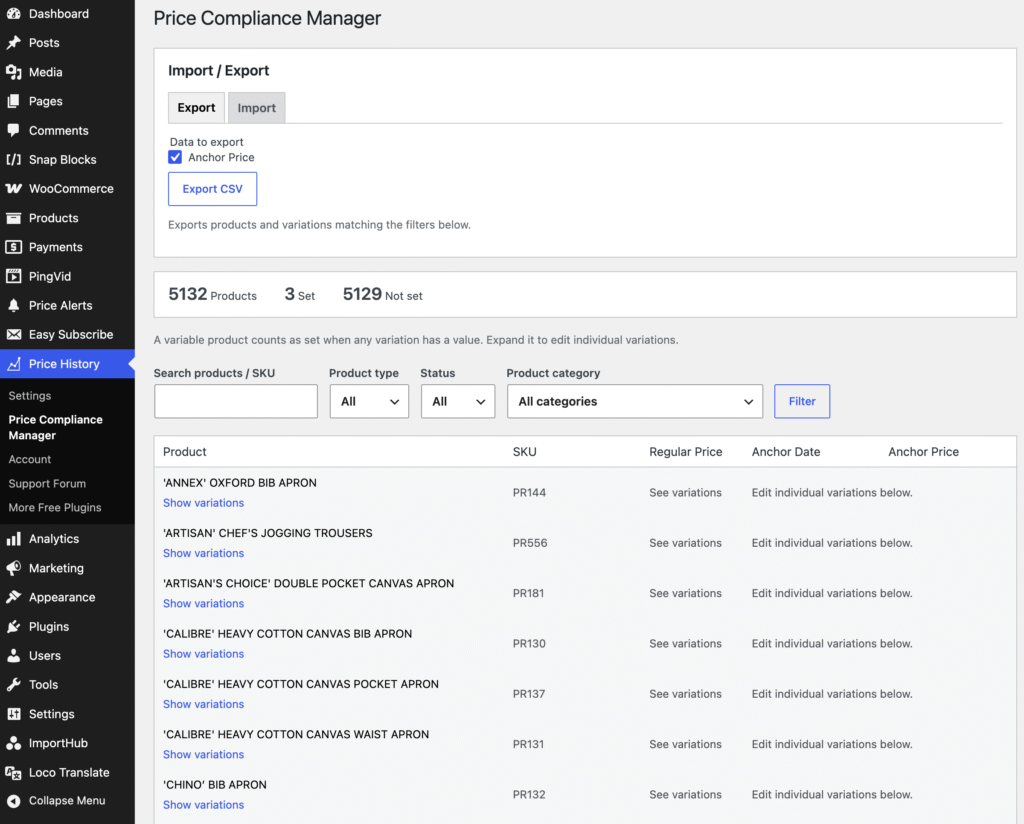
Each simple product and each individual variation can have its own Anchor Date and Anchor Price. For variable products, anchor prices are managed at variation level.
The date and price always belong together. A valid anchor therefore consists of both an Anchor Date and an Anchor Price.
Recommended Initial Setup
For the initial setup of Anchor Prices across an existing catalog:
- Configure the appropriate Anchor Date under Product Price History → Settings → Price Compliance → Anchor Price.
- Open the Price Compliance Manager and export your products.
- Review the automatically populated Anchor Price data in the CSV.
- Fill in any missing values and adjust products that require a different Anchor Date.
- Import the completed CSV.
- Filter the manager by Status: Not set to find products or variations that may still require attention.
After the initial setup, you can use the table for individual changes and CSV import/export whenever you need to update a larger number of products.
Product Overview
At the top of the manager, you can see the total number of products and how many currently have an anchor price set or not set.
For variable products, the product is considered set when at least one of its variations has an anchor price.
Filtering Products
Use the available filters to find the products you want to review or edit.
You can search by product name or SKU and filter by:
- Product type
- Anchor Price status
- Product category
When filtering by category, products from its subcategories are included as well.
Editing Anchor Prices
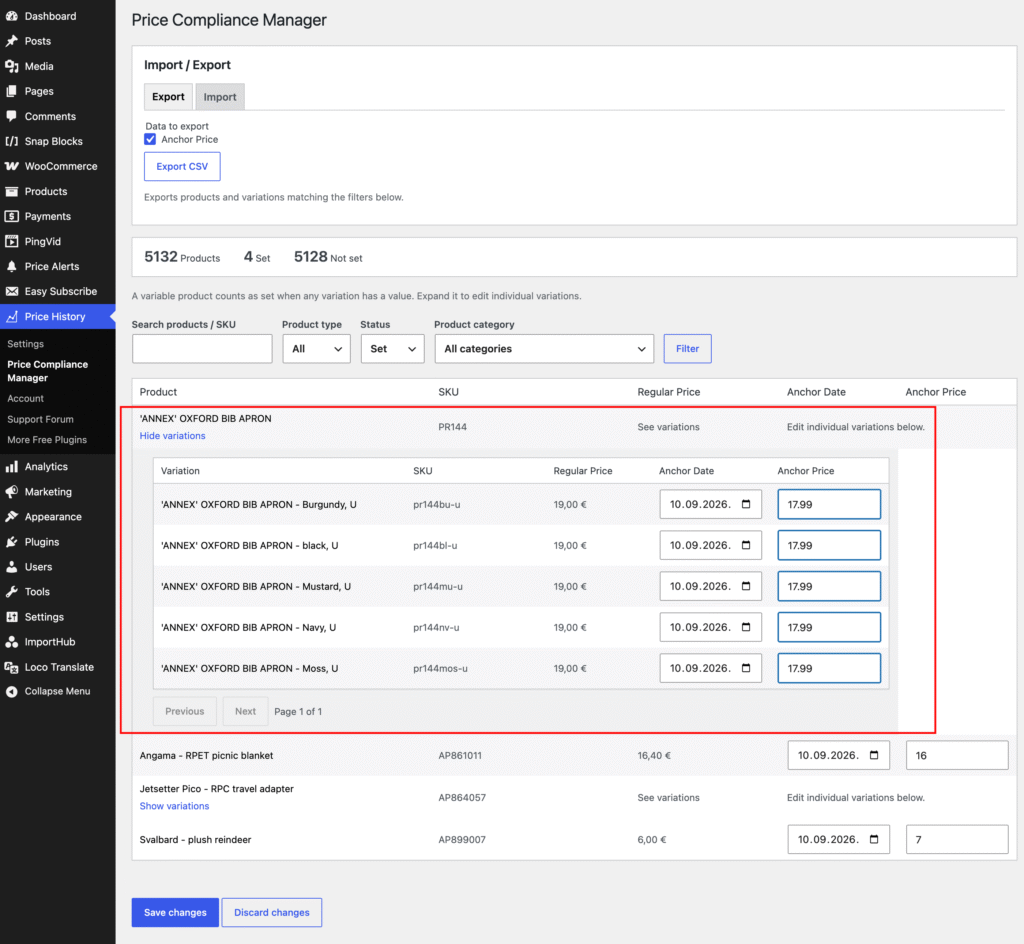
The Anchor Date and Anchor Price columns can be edited directly in the table.
For variable products, click Show variations to view and edit the Anchor Date and Anchor Price for individual variations.
After making changes, click Save changes. Use Discard changes if you want to revert your unsaved edits.
To remove an existing anchor price, clear both the Anchor Date and Anchor Price fields and save the changes.
Always save or discard your changes before changing filters or moving to another page.
Exporting Anchor Prices
CSV export is useful when you need to review or update Anchor Price data for many products at once.
First, use the product filters to select the products you want to work with. Open the Export tab, select Anchor Price, and click Export CSV.
Simple products are exported as individual rows. For variable products, each variation is exported separately.
The exported file includes product information for reference, together with:
- Product ID
- Product name and SKU
- Product type
- Current regular price
- Anchor Date
- Anchor Price
Automatic Values from Price History
When a product does not already have a saved anchor price, the export attempts to determine it from the price history recorded by Product Price History.
For products that existed on the configured Anchor Date, the plugin uses the applicable regular price recorded for that date.
For products created after the configured Anchor Date, the plugin attempts to use the first recorded regular price and the product creation date.
Existing saved Anchor Price values always take priority.
If the plugin cannot reliably determine the historical price, the Anchor Date and Anchor Price are left empty. These products should be reviewed and completed manually.
Important: Values automatically filled in during export are not saved to your products. Review the CSV and import it back into the store to save them as Anchor Price data.
Editing the CSV
For most stores, the easiest workflow is to open the exported CSV in Excel, LibreOffice, Google Sheets, or another spreadsheet application.
You normally only need to edit these two columns: anchor_price_date and anchor_price
Anchor Price Date
Dates must use the YYYY-MM-DD format.
For example: 2026-09-10
Be careful when using spreadsheet applications, as they may automatically change the date format when saving the file.
Anchor Price
Enter the price without a currency symbol or thousands separator.
For example: 19.99
Both the store’s decimal separator and a decimal point are accepted.
Empty Values
The Anchor Date and Anchor Price must either both contain a value or both be empty.
If only one is provided, that row will be considered invalid during import.
Leaving both cells empty does not remove an existing anchor price. Use the Price Compliance Manager table if you want to remove an anchor.
Importing Anchor Prices
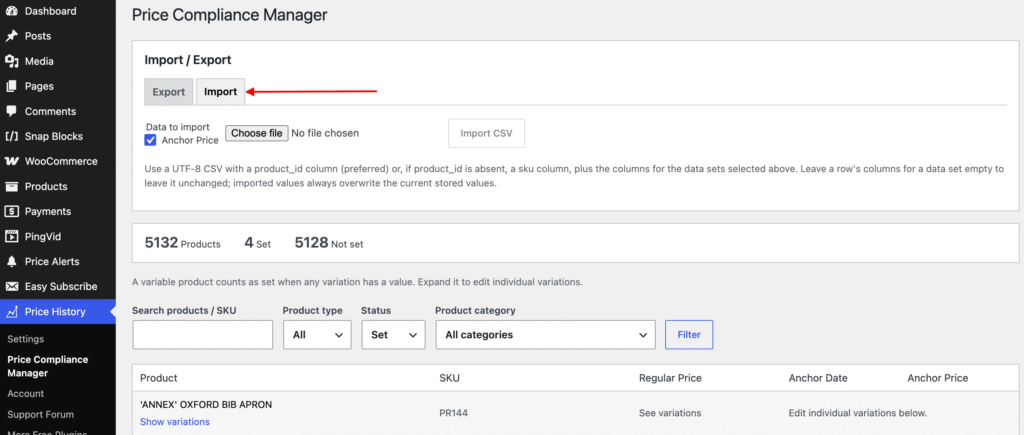
Open the Import tab, select Anchor Price, choose your CSV file and start the import.
Imported Anchor Date and Anchor Price values are matched to products and variations using their product ID. SKU can also be used when the CSV does not contain a product ID column.
The import updates only Anchor Price data. Other product information included in the exported CSV, such as product names, URLs and regular prices, is provided for reference and is not changed.
For large catalogs, the import is processed gradually to avoid server timeouts. If the connection is interrupted, you can resume the import instead of starting again.
When the import finishes, a summary shows how many rows were updated, unchanged, skipped or invalid.
After importing, use Refresh table to review imported values to verify the results.