
The first import is usually the slowest and may take several hours to complete.
During the initial import, UTT product data must be downloaded and WooCommerce products, variations, categories, attributes, and images must be created for the first time.
Future imports are typically much faster because existing products are updated instead of created and previously downloaded images are reused.
We recommend completing the initial import before enabling automated scheduled imports.
Recommended Settings for the First Import
The first import consists of two phases:
- Preparing and downloading data from UTT.
- Importing products into WooCommerce.
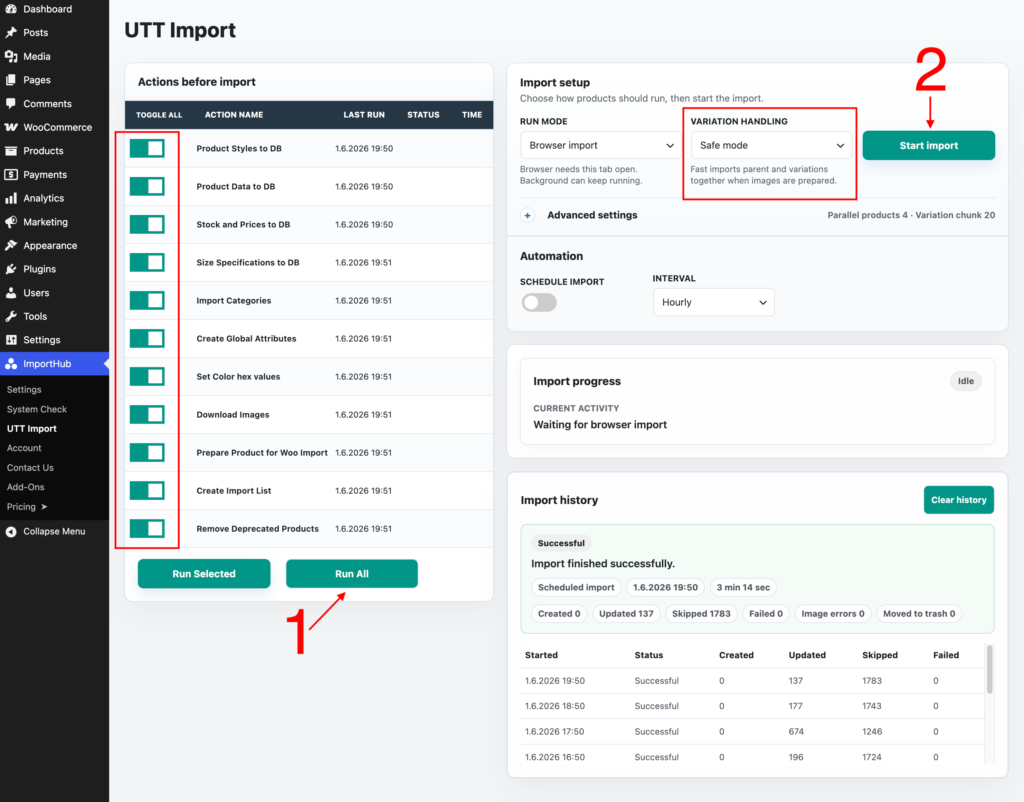
Step 1: Prepare Import Data
Before products can be imported, all actions in the Actions before import section must be completed successfully.
The easiest approach is to leave all actions enabled and click Run All.
This process will:
- Download product data from UTT
- Download stock and pricing information
- Create WooCommerce categories and attributes
- Download product images
- Prepare products for WooCommerce
- Create the import list
Image Downloads
Downloading images is typically the longest part of the initial import process.
UTT provides approximately 35–40 GB of product images and limits downloads to around 150 KB/s. Depending on your catalog size and server performance, this stage may take several hours to complete.
If you close your browser or interrupt the process, simply start Run All again later. Previously downloaded images will be skipped automatically, and ImportHub will continue downloading only the missing images.
Once all actions have completed successfully, you can proceed to the product import step.
Step 2: Import Products
For the initial import, we recommend selecting Safe Mode under Variation Handling before clicking Start Import.
Some UTT products contain more than 700 variations. Safe Mode processes these products in smaller batches and is generally more reliable when importing the catalog for the first time.
After the initial import has completed successfully, you can switch to Fast Mode for future imports.
When ready, click Start Import to begin creating products in WooCommerce.
Depending on your server resources and catalog size, the initial product import typically takes between 20 and 60 minutes to complete.
Troubleshooting Failed Imports
If you notice more products being imported with a Failed status, your server may be struggling with the current workload.
Try reducing the Variation Chunk Size and Parallel Products values to reduce server load and improve import stability.
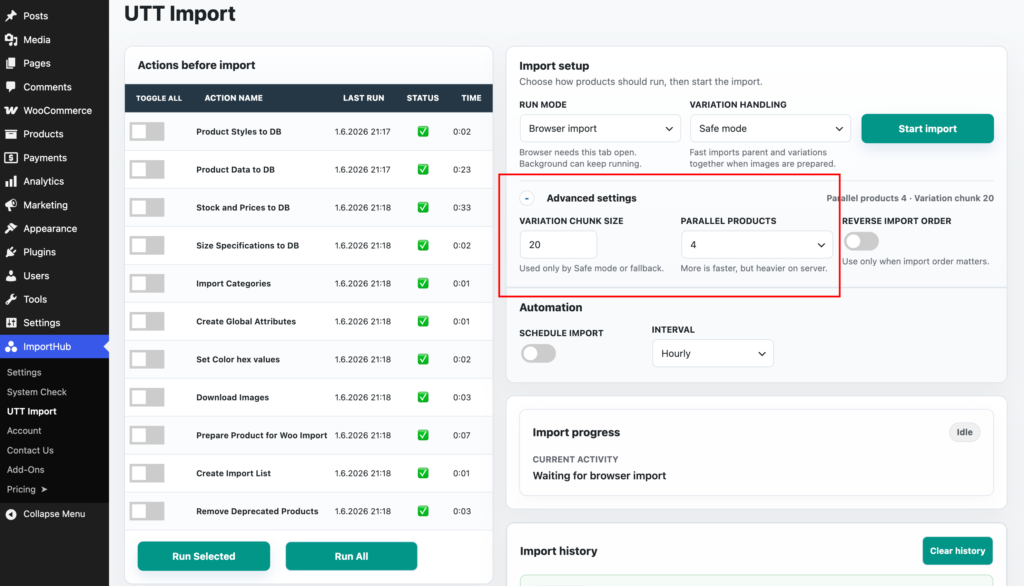
Variation Chunk Size
Controls how many variations are processed at once when using Safe Mode.
The default value of 20 is recommended. On more powerful servers, you can increase this value to 50 or higher to improve import speed.
Parallel Products
Controls how many products are imported simultaneously.
The default value of 4 provides the best balance between speed and server load for most stores.