
FSL Discount Add-on adds discount goals to the progress bar, for example “10% off orders over 100 €” or tiers like 10% from 300 €, 15% from 600 € and 20% from 1,200 €. Customers see how close they are to the next discount, and the discount applies automatically once they reach it.
Flexible Plans to Match Your Needs
We offer three plans tailored to your shop’s goals:
- Single Step: Unlocks one threshold step.
- Double Step: Adds a second customizable threshold.
- Triple Step: Provides three levels for maximum flexibility.
Each plan allows you to create a fully customizable and easy-to-use progress bar for your shop.
The FSL Discount Add-on works seamlessly with both the Free and Pro versions of the Free Shipping Label plugin (version 4.0.0 or higher).
License Information
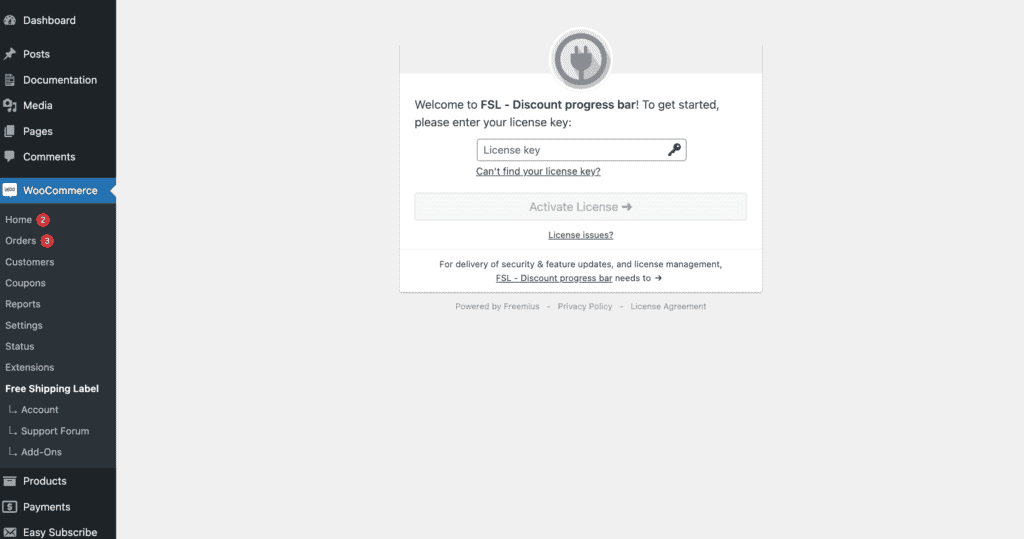
The FSL Discount Add-on is a premium-only product, which means it requires a valid license to function.
Here’s how to activate your license:
- Download, install, and activate the plugin.
- Go to the settings page, where you’ll be prompted to enter your license key.
- The license key will be sent to your email after purchase.
Once the license is entered, you’ll unlock the full settings and features of the add-on.
Important: Ensure your license remains active to continue receiving updates and support!
The tab has a sub-tab for each Discount bar (Discount Bar 1, 2, 3) and a General sub-tab for rules that apply to all of them.
Discount Bar 1, 2 and 3
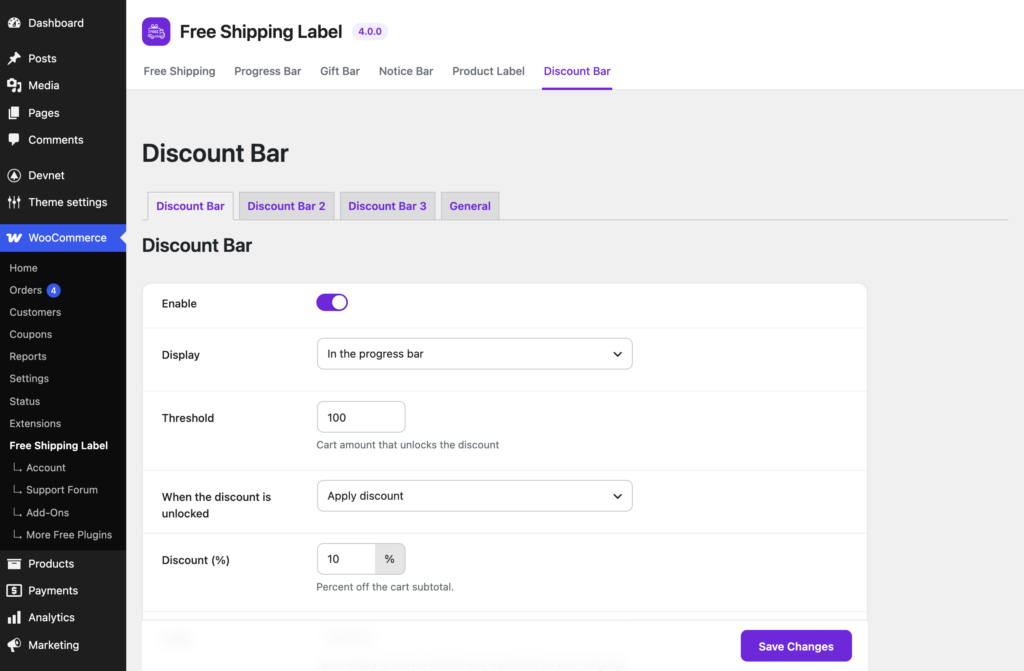
Each bar is one discount goal with its own settings.
Enable
Turns this Discount bar on. Off by default.
Display
Where the discount goal shows:
- After the previous goal is reached: appears once the goal before it (free shipping, the gift or a lower discount) is reached.
- In the progress bar (default): one more goal in the progress bar, from the start.
- Discount Bar only: shows only this discount, no other goals.
- As a separate bar: its own bar, next to the progress bar.
Threshold
The cart amount that unlocks the discount. Without it, the bar doesn’t show.
When the discount is unlocked
- Apply discount (default): a discount line, for example “Discount −10,00 €”, is added to the cart, checkout and order. Set the percentage below.
- Apply coupon: a WooCommerce coupon is applied automatically, and removed again when the cart drops below the threshold. The coupon’s own settings decide the discount.
Discount (%)
With Apply discount: the percentage off the cart subtotal, from 0 to 100.
Example: 10% from 100 €. A 120 € cart gets 12 € off.
Note: The percentage is taken from the subtotal customers see: with prices shown including tax, it’s off the price with tax, so the discount matches what they expect.
Label
With Apply discount: the name of the discount line in the cart, checkout and order, and the goal’s name in the layouts. Default: “Discount”.
Coupon code
With Apply coupon: the code of a coupon you created in Marketing → Coupons, for example SPECIAL10.
Warning: The coupon’s own rules still apply: minimum spend, usage limits, expiry date, excluded products. If WooCommerce rejects the coupon, the bar can show the discount as unlocked without a discount in the cart. Test the coupon on its own first.
Several Discount bars
With more than one bar on, the cart gets the reached bar with the highest threshold. Customers don’t get 10% and 15% together.
Example: 10% from 300 €, 15% from 600 €. A 650 € cart gets 15%.
Tip: Use the same choice (Apply discount or Apply coupon) for all your bars.
Text
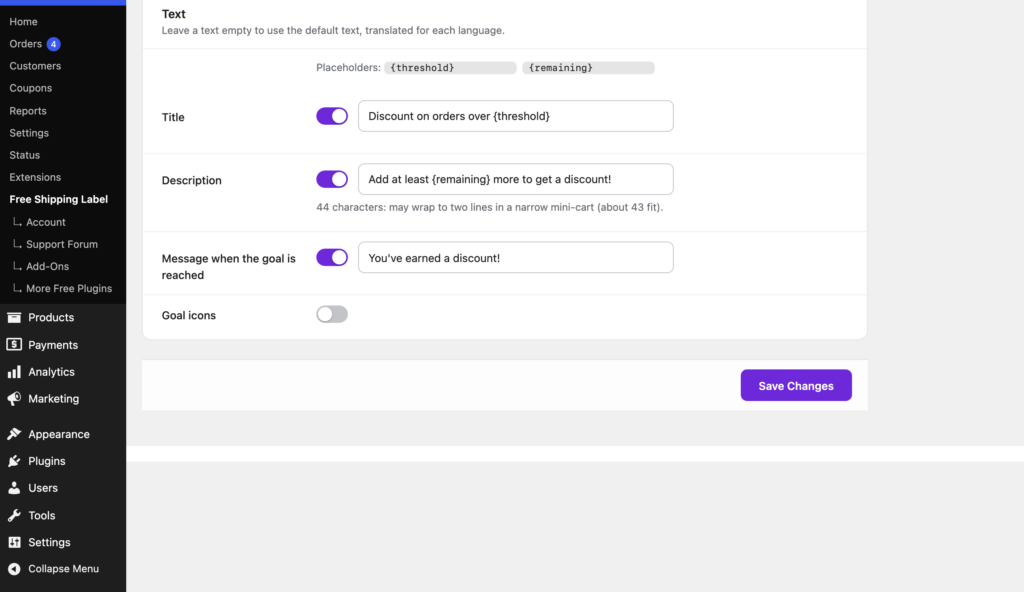
Leave a text empty to use the default text, translated for each language. Each text has a switch to hide it.
Placeholders: {threshold} (this bar’s threshold) and {remaining} (what’s left to spend).
Title
Default: “Discount on orders over {threshold}”.
Description
Default: “Add at least {remaining} more to get a discount!”.
Message when the goal is reached
Default: “You’ve earned a discount!”.
Icons
Goal icons, Icon size, Icon shape, Icon, Icon color and Icon background color set this discount’s icon in the layouts that show icons. The default icon is a discount tag.
Note: The bar’s design (colors, preset, bar type, layout) comes from the Progress Bar tab, so all goals look like one bar.
General
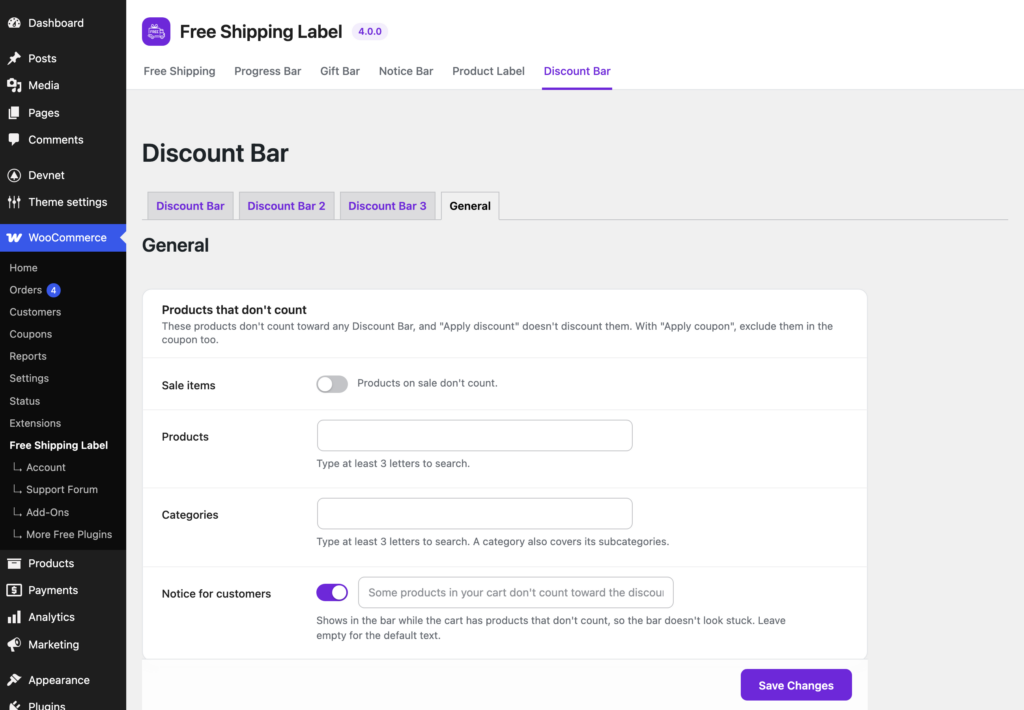
Rules for all Discount bars.
Products that don’t count
Products that don’t count toward any Discount bar’s threshold. With Apply discount they aren’t discounted either.
- Sale items: products on sale don’t count. Off by default.
- Products: choose products. Type at least 3 letters to search.
- Categories: choose categories. A category also covers its subcategories.
Example: tiers from 300 €, sale items excluded. A cart with a 529 € ring and a 99 € sale necklace counts 529 €. The 15% tier at 600 € is still 71 € away, and the 10% discount is taken from the ring only.
Warning: With Apply coupon, the coupon decides which products get the discount. Exclude the same products and categories in the coupon too (for sale items: the coupon’s Exclude sale items option).
Note: These rules only affect discounts. Free shipping still counts the whole cart.
Notice for customers
A short note in the bar while the cart has products that don’t count, so customers know why the bar doesn’t move. Default: “Some products in your cart don’t count toward the discount.” Switch: Show notice (on by default). Leave the text empty for the default, translated for each language.