
This tab tells the plugin how much customers need to spend for free shipping (the free shipping threshold). The progress bar and the Notice Bar count down to it, and the Product Label uses it to mark products that ship free on their own.
Most stores don’t need to change anything here: the plugin reads the threshold from your WooCommerce shipping settings.
Where: WooCommerce → Free Shipping Label → Free Shipping (the first tab).
Note: Free shipping itself is set up in WooCommerce (WooCommerce → Settings → Shipping), not in this plugin. Add a Free shipping method with a minimum order amount to your shipping zones first.
Free shipping status
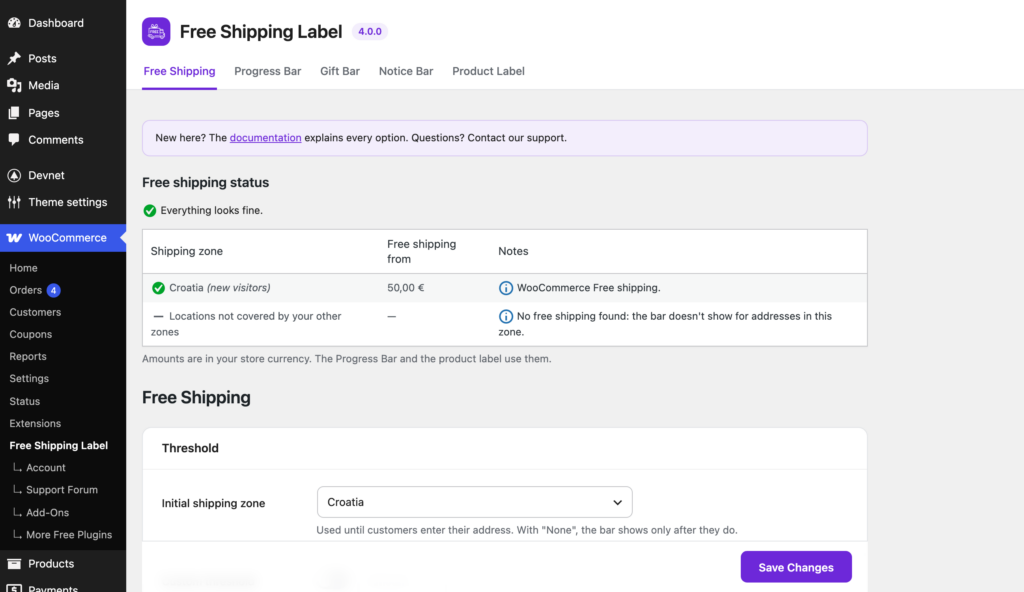
The box at the top checks your setup. It lists every shipping zone with:
- Free shipping from: the amount the bar counts down to for addresses in that zone. A dash means no amount.
- Notes: where the amount comes from, and anything worth knowing.
Each zone gets an icon: a green tick (all good), a yellow sign (worth a look, the note says why) or a grey dash (no free shipping in this zone, so no bar there). Messages that affect the whole store show above the table.
The status only reads your settings and never changes them.
Messages you may see and what to do:
- Customers see the bar and label only after entering an address. WooCommerce hides shipping costs until there’s an address. Uncheck Hide shipping costs until an address is entered in WooCommerce → Settings → Shipping → Shipping options.
- No free shipping found. The zone has no Free shipping method. Add one if you want the bar there.
- FSL can’t read free shipping from … The zone uses a shipping plugin the plugin can’t read. Use the custom threshold below.
- Free shipping here starts at …, but the bar uses your custom threshold. The two amounts differ, so the bar fills up at the wrong amount. Make them match.
- WooCommerce Free shipping here needs a coupon only. There’s no amount to count down to, so the bar doesn’t show.
Note: The status checks settings, not real carts. Rules that depend on the cart (weight, products, customer role) can’t be checked here.
Threshold
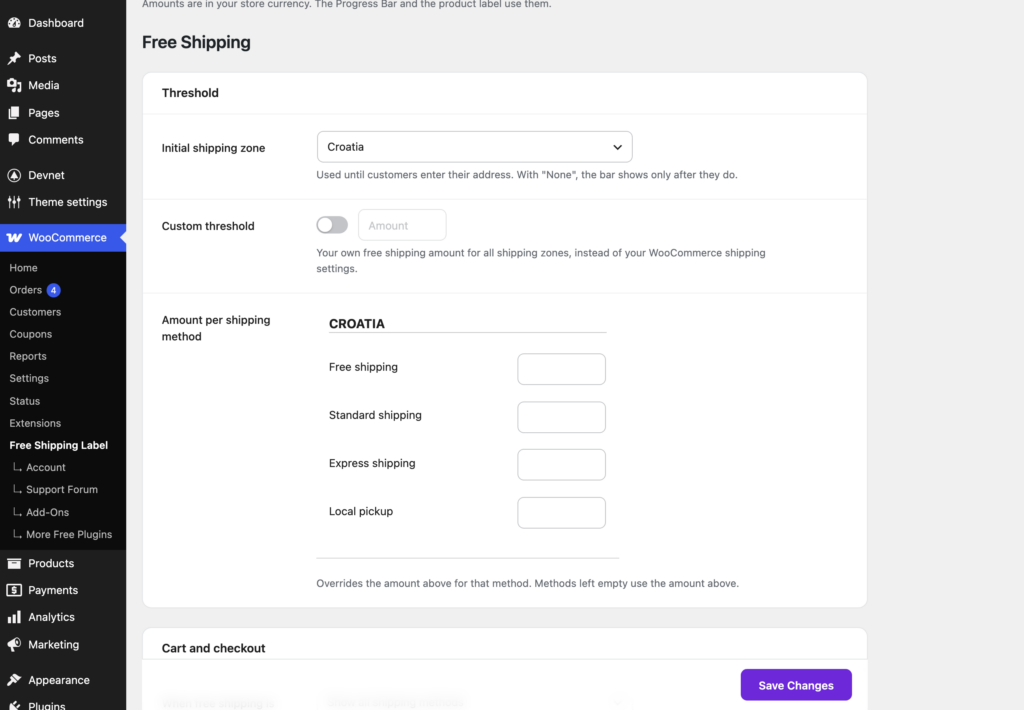
Initial shipping zone
The zone the bar uses for visitors who haven’t entered an address yet. Default: your first shipping zone.
Example: most customers are in Croatia, so choose the Croatia zone. A first-time visitor sees “Add 30 € more to get free shipping” right away.
Choose — None — to show the bar only after the customer enters an address.
Note: This only matters when WooCommerce doesn’t locate new visitors itself. With WooCommerce → Settings → General → Default customer location set to the store’s country or to geolocation, WooCommerce already picks the zone and this setting has no effect. The status tells you when that’s the case.
Custom threshold
Switch on Use a custom threshold and enter an amount to use it in every shipping zone, instead of the amounts in your WooCommerce shipping settings.
Use it when your free shipping comes from a shipping plugin the plugin can’t read, or when you want one amount everywhere.
Warning: The custom threshold only changes what the bar shows. WooCommerce (or your shipping plugin) still decides whether shipping is free. If the bar says 50 € but free shipping starts at 60 €, customers see “You have free shipping!” and still pay for shipping.
Amount per shipping method
A field for each shipping method in each zone. When a customer picks a method, the bar uses that method’s amount. Methods left empty use the custom threshold above.
Example: Express and Standard in Croatia get 100, DPD in Germany (no free shipping) stays empty, and the custom threshold above is empty too. Then DPD shows no bar.
Cart and checkout
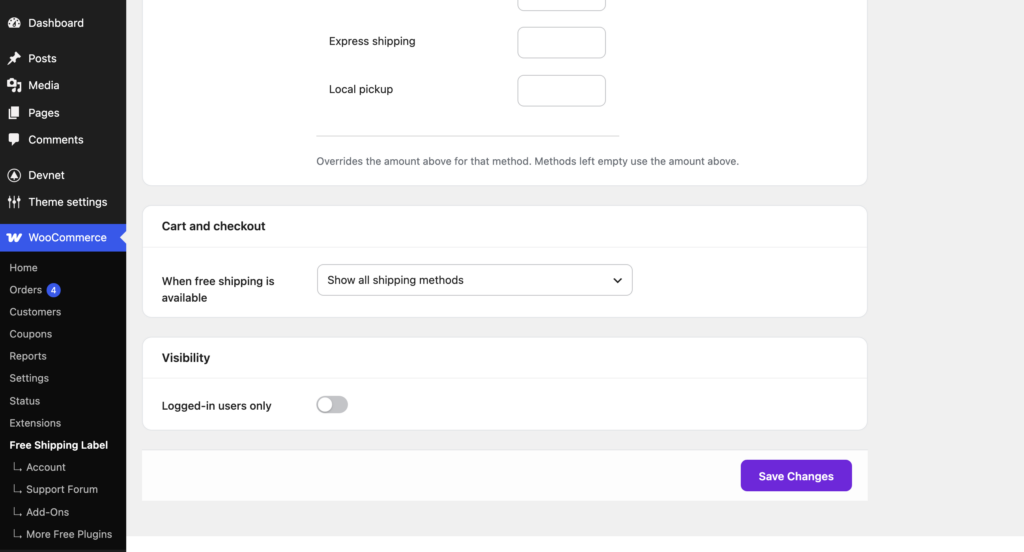
When free shipping is available
What the cart and checkout show once a customer qualifies for free shipping:
- Show all shipping methods (default): nothing is hidden.
- Show only free shipping: paid methods are hidden, so nobody picks one by mistake.
- Show only free shipping and local pickup: customers can still collect the order themselves.
Until the customer qualifies, every method shows.
Note: This works with WooCommerce’s own Free shipping method.
Visibility
Logged-in users only
Shows the bar and labels only to logged-in customers. Useful for wholesale stores or when free shipping is a member perk.
Note: When free shipping is available still applies to everyone. It’s a shipping rule, not something shown.
Multiple currencies
With FOX (WOOCS), CURCY, WooCommerce Multilingual & Multicurrency (WPML) or WooPayments multi-currency, the plugin converts the threshold to the customer’s currency. Enter all amounts in your store’s main currency.
Looking for an older setting?
- Multilingual was removed in 4.0.0. Leave a text empty and it shows the default text, translated into each language of your store.